Make User-Centered FAQ Pages that Actually Help Your Potential Customers

Make User-Centered FAQ Pages that Actually Help Your Potential Customers

Content Marketing Copywriting UX

Imagine that one of your potential or current customers is desperately seeking help, and they land on your website. They find your FAQ page, scroll through dozens of entries about your “mission” and “values,” but can’t find the simple answer they need.

They leave and go on to the next website, still searching for answers. You’ve lost them.

91% of customers say they’d use an online knowledge base if it met their needs, but most FAQ pages fail them. They’re filled with corporate jargon and questions nobody actually asks.

The problem isn’t that FAQs don’t work—it’s that most companies build them backwards. They write questions they want to answer instead of questions customers actually ask. This guide shows you how to flip that script. You’ll learn exactly how to find the real questions your users are asking, organize them so people can actually find answers, and create an FAQ section that builds trust instead of frustration.

Contents

Source: ThirdEyeDesigners

Why Most FAQ Pages Are Inadequate

Most companies treat their FAQ section as a place to dump corporate talking points. They use it to explain policies that benefit the company, not to solve customer problems.

If your FAQ page isn’t helping people, it’s a waste of time.

The disconnect between company priorities and user needs

When you write “What makes our company special?” instead of “How do I return a damaged item?”, you’re wasting everyone’s time. Customers don’t care about your award-winning customer service philosophy when they’re trying to figure out shipping costs.

67% of customers prefer self-service over speaking to a company representative. They’ll only use self-service if it actually works.

But when your FAQ is full of vague answers and marketing speak, you force people to contact support anyway. That ineffective FAQ page increases your costs and frustrates your customers.

The cost of poor FAQs

Poor FAQs have real business consequences. They lead to:

  • Increased support tickets and calls for simple questions you could’ve answered online
  • Cart abandonment when shoppers can’t find basic information
  • Lost sales because customers give up and go to competitors
  • Damaged credibility when your “Help” section doesn’t actually help

Instead, of thinking about what you want to say, start thinking about what your customers need to know.

How to Find The Questions Your Customers Ask

You don’t need to guess what questions to answer. Your customers are already telling you—you just need to listen. Here’s where to find the real questions that matter.

Mine your customer support tickets and email inquiries

Your support inbox is a goldmine. Every ticket represents a question your FAQ should’ve answered but didn’t.

  • Start by reviewing your last 200 support tickets or inquiries. Look for patterns. You’ll notice the same questions appearing again and again.

    According to customer service data, about 70% of support inquiries fall into just 10 to 15 common question categories. Those repeated questions belong in your FAQ.
  • Pay attention to the exact words customers use. If 10 people ask “Can I change my order after I place it?” that’s an FAQ question.


Check your live chat transcripts

Live chat shows you what confuses people in real-time. Unlike support tickets, chat transcripts capture the moment of confusion. You can see exactly where customers get stuck in their journey.

Review 50 to 100 recent chat sessions or comments. Which pages do people visit where questions come up? If everyone chatting from your pricing page asks the same question, you need to add that to your FAQ.

Analyze your website search data

Your internal search bar tells you what people can’t find on their own. Log into your website analytics and pull up your site search reports.

Listen on social media

People ask questions on social media because they couldn’t find answers on your website. Check your:

  • Facebook and Instagram comments on your posts
  • Twitter mentions and DMs
  • LinkedIn company page comments
  • YouTube video comments if you have a channel

You’ll find questions you never thought to address. Social media gives you unfiltered feedback about what confuses people or what they wish you’d explain better.

Read your product and service reviews

Reviews aren’t just about ratings—they’re full of questions and confusion. Browse your reviews on your site, Amazon, Google, TrustPilot, Yelp, or industry-specific platforms.

Look for reviews that mention confusion or difficulty. Comments like “I wish I’d known this before buying” or “It would be helpful if they explained…” show you missing FAQ topics.

85% of consumers read up to 10 reviews before making a purchase decision, so addressing concerns in your FAQ can directly impact sales.

Talk to your sales and support teams

Your front-line teams hear everything. They know which questions come up daily and which explanations customers struggle to understand.

Schedule monthly FAQ check-ins with these teams. Ask: “What questions did you answer this week that we should add to the FAQ?” They’ll give you specific, actionable insights you can’t get from data alone.

The Best Research Methods to Find User Intent in Searches

Finding questions is step one. You need to understand why people ask them and how they think about their problems.

Set up a tagging system

Create a simple system to categorize every support inquiry. You can use tags like:

  • Pre-purchase questions
  • Shipping and delivery
  • Returns and refunds
  • Account issues
  • Technical problems

Tag at least 100 tickets/emails to find customers’ search patterns. You’ll quickly see which categories generate the most questions. Companies using structured ticket categorization reduced response times by 36%.

Track question frequency in a spreadsheet

Build a simple spreadsheet with columns for:

  • The question (in customer’s words)
  • How many times it appeared
  • Which channel it came from
  • Priority level (high/medium/low)

Update it weekly. Questions that appear 10+ times are high priority for your FAQ. Questions that appear once might not need to be there at all.

Use keyword research tools

Toolbox with different SEO monitoring icons

Tools like Google’s “People Also Ask” feature, Answer the Public, and your SEO platform show you what people search for online.

Enter your main topic and see what questions Google suggests. If Google thinks these questions are important enough to show in search results, they should probably be in your FAQ. Research shows “People Also Ask” (PAA) boxes appear in 85% of Google search results, making them a reliable indicator of common questions.

Run card sorting exercises with real users

Source: Interaction Design

Card sorting helps you understand how people naturally group information.

Test with 5 to 10 people from your target audience. Give your research participants 20 to 30 FAQ topics written on cards (physical or digital). Ask them to organize the cards into groups that make sense to them.

This is a great way to learn how they think about your content. Maybe they group all payment questions together, while you had them scattered across “Billing,” “Subscriptions,” and “Refunds.” Use their mental model to design the structure of your FAQs.

Conduct user testing on your current FAQ

Watch real people try to use your existing FAQ. Give them specific tasks like “Find out how to cancel your subscription” and observe where they struggle.

You can test with just 5 participants to see 85% of usability problems. You’ll see which questions are hard to find, which answers are confusing, and where your organization breaks down.

Write Answers That Actually Help People

Source: VRBO

Finding the right questions matters, but your answers need to deliver. Here’s how to write FAQ answers that people can actually use.

Use your customer’s language

Write like your customers talk, not like your legal team talks. If customers say “cancel,” don’t write “terminate your subscription agreement.” If they say “broken,” don’t write “manufacturing defect.”

Review 10 support tickets and note the exact phrases customers use. Those phrases become your FAQ vocabulary. Plain language improves comprehension. Readers with low literacy skills understand 70% of plain language content compared to just 30% of complex text.

Front-load the answer

Don’t make people read three paragraphs to find what they need. Start with the answer, then add details if needed.

  • Poor: “Our company values customer satisfaction. We’ve designed our return policy with flexibility in mind. After careful consideration of industry standards…”
  • Way Better: “You can return items within 30 days for a full refund. Keep your receipt and original packaging.”

The second version respects your reader’s time.

Keep answers scannable

Source: Ahrefs

Most people scan—they don’t read word by word. Make scanning easy with:

  • Short paragraphs (2-3 sentences max)
  • Bullet points for lists or steps
  • Bold text for key information
  • Clear headers that describe what’s in each section

People only read only 20-28% of words on an average web page. Make those words count.

Include specific examples

Abstract answers create more confusion. Concrete examples make everything clear.

  • Instead of: “Shipping times vary based on your location.”
  • Write: “Shipping takes 2-3 business days within the continental US, 5 to 7 days to Alaska and Hawaii, and 7 to 10 days internationally.”

Numbers, timeframes, and specifics eliminate ambiguity.

Add visuals when they help

Some answers work better with screenshots, diagrams, or short videos. If you’re explaining how to use a feature, a 30-second video beats 300 words of text.

But only add visuals when they actually clarify something. Don’t add images just for decoration. Every element should have a purpose.

Smart Ways To Organize Your FAQ Architecture

Source: ResearchGate

Even perfect answers won’t help if people can’t find them. Your FAQ structure determines whether users get help or give up.

Group by the customer journey stage

Source: Funnelytics

Organize questions around where customers are in their relationship with you.

Before buying:

  • Pricing and payment options
  • Product features and specifications
  • Shipping and delivery

During use:

  • Getting started guides
  • Common tasks and how-tos
  • Tips for better results

When there’s a problem:

  • Troubleshooting steps
  • Returns and refunds
  • Contacting support

This structure matches how people think. A potential customer doesn’t want to wade through troubleshooting questions. (Someone with a broken product doesn’t care about your payment plans.)

Create clear categories with descriptive names

Your category names should be obvious. Don’t get creative here—clear beats clever.

Clear, intuitive category names:

  • Orders and Shipping
  • Returns and Refunds
  • Account and Billing
  • Technical Support

Unhelpful category names:

  • Getting Started (too vague)
  • Miscellaneous (meaningless)
  • Customer Care (what does this include?)

Clear labeling can improve task completion rates by up to 35%.

Make your search function work hard

Source: SearchStax

Your FAQ search needs to be smart. But building a fancy search function might not be realistic or necessary.

  • If you have fewer than 25 FAQ questions, you probably don’t need search at all. A simple, well-organized page with clear categories and a table of contents at the top works fine. Users can scan and find what they need quickly.
  • If you’re using a website builder like Squarespace, Wix, or WordPress, many come with basic built-in search. Turn it on if you have it, because even simple search is better than none. Most platforms include this feature in their standard plans.
  • For growing solopreneurs with 50+ FAQs, consider these free options:
    • Use your platform’s native search and make sure your FAQ titles include the exact words customers use
    • Add a “jump to section” table of contents at the top of your FAQ page with clickable links (just like this article)
    • Try Algolia’s free tier (up to 10,000 searches per month) if you need something more powerful
    • Use Google Custom Search Engine (free with ads, or $5/month without ads)

Don’t stress about having the “perfect” search experience. A well-organized FAQ with clear headings and a ctrl+F-friendly structure beats a poorly organized FAQ with expensive search any day.

Don’t make everyone scroll to find common questions. Put your top 5 to 10 questions right at the top of your FAQ page where everyone can see them.

Update this list quarterly based on your analytics. The questions people viewed most last month should be prominently displayed.

Technical SEO For Your FAQ Content

Good FAQs help customers. SEO-optimized FAQs help customers find you in the first place.

Source: RankMath

Use FAQ schema markup

Schema markup is code that tells Google “this is a question and answer.” It can make your FAQs appear in search results as rich snippets; those expanded results that show the question and answer right on the Google search page.

Pages with FAQ schema have been shown to get more clicks than regular listings. It’s worth the technical effort or asking your developer to add it.

Structure each question as a heading

Use H2 or H3 (subheading) tags for your questions (the heading above is an H3). This helps screen readers, improves accessibility, and tells search engines these are important questions.

Don’t just bold your questions, use proper heading tags. Search engines pay attention to headings when deciding what your page is about.

Target long-tail keywords

Long-tail keywords are specific phrases people actually search for. “How do I track my order?” is a long-tail keyword. “Tracking” is not.

Write your FAQ questions the way people search. Google Search Console shows you the exact phrases people use to find your site. Use those phrases as your FAQ questions when relevant.

Source: StickyPins

Over 50% of internet queries use voice search to find answers. Voice searches tend to be longer and more conversational than typed searches.

So for your FAQ page, write questions in natural, conversational language that matches how people speak.

Source: Japanese Class

Maintain And Improve Your FAQs Over Time

Your FAQ isn’t a one-and-done project. It needs regular care to stay useful.

Review quarterly

Set a reminder to review your FAQ every three months. Check that:

  • All information is still accurate
  • Links still work
  • Product features haven’t changed
  • Policies are up to date

Nothing destroys trust like outdated information. If your FAQ says “we ship within 24 hours” but you changed that policy six months ago, you’re creating problems instead of solving them.

Source: Powerslides

Add new questions as they emerge

When you get the same question multiple times, add it to your FAQ page ASAP. Keep your FAQ fresh and responsive to current customer needs.

Archive outdated questions

If a question no longer applies, remove it. Don’t leave it there with a note saying “this feature no longer exists.”

Don’t neglect to update your FAQs because old, irrelevant questions make your FAQ harder to navigate. They waste your users’ time sorting through them, and make your business look sloppy.

Track your FAQ metrics

Guy with braids looking at analytics data lightbulb moment

Use analytics to monitor:

  • Which FAQ questions get the most views
  • How long people spend on FAQ pages
  • Whether people contact support after viewing an FAQ
  • Search terms that lead people to your FAQ

If a question gets 1,000 views a month but your bounce rate is 90%, that answer isn’t working. Test a clearer version and see if engagement improves.

Common FAQ Mistakes To Avoid

Even with good intentions, it’s easy to mess up your FAQ. Watch out for these common problems.

Source: RCR Financial

Writing in corporate voice

Your FAQ should sound like a helpful friend, not a legal document. Compare these examples:

  • Corporate: “Upon receipt of your inquiry, our customer success team will endeavor to provide resolution within the timeframe specified in our service level agreement.”
  • Helpful: “We’ll respond to your message within 24 hours on business days.”

The second version is easier to understand and gets to the point.

Making answers too long

If your answer is three paragraphs long, break it into smaller pieces or use bullet points.

Give people the core answer fast, then add details for those who need them.

Using your FAQ as a dumping ground

Just because someone asked a question once doesn’t mean it needs to be in your FAQ. Focus on questions that come up repeatedly. A FAQ with 200 questions helps nobody—it’s too overwhelming to use.

Forgetting mobile users

More than 50% of web traffic comes from mobile devices. If your FAQ is hard to navigate on a phone, you’re failing most of your audience.

Test your FAQ on your phone right now. Can you easily:

  • Scan the categories?
  • Use the search function?
  • Read the answers without zooming?
  • Navigate back to find another question?

If any of these are difficult, you need to fix your mobile design to give customers a better experience.

Wrap Up

Your FAQ page should be one of your hardest-working assets. When built with real user questions and organized around how people actually think, it reduces support costs, builds trust, and helps customers succeed faster.

The key is to stop guessing what people want to know and start listening to what they’re already asking.

Your customers are searching for answers right now. Give them a FAQ page that actually delivers. Your support team will thank you, your customers will trust you more, and your business will benefit from the reduced friction.

The best FAQ pages don’t feel like FAQs at all—they feel like a helpful friend who knows exactly what you need.


References

Customer Effort Is at an All-Time High — Is Search the Key? (2025). Coveo. Retrieved from https://www.coveo.com/en/resources/reports/2025-cx-relevance-report/

Customer Service Benchmark Report. (2025). Freshworks. Retrieved from https://www.freshworks.com/resources/customer-service-benchmark-report-2025/

CX Trends. (2025). Zendesk. Retrieved from https://www.zendesk.com/customer-experience-trends/

From me to we: The rise of the purpose-led brand. (2018). Accenture. Retrieved from https://www.accenture.com/us-en/insights/strategy/brand-purpose/

Hitches, L. (2024). Structured Data for FAQs: Using FAQ Schema for SEO. Lawrence Hitches. Retrieved from https://www.lawrencehitches.com/faq-schema/

How to optimize your Mobile app for voice search in 2025. (2025). Smarther. Retrieved from https://www.smarther.co/blog/how-to-optimize-your-mobile-app-for-voice-search/

Montii, R. (2023). FAQ Schema: A Guide for Beginners. Search Engine Journal. Retrieved for https://www.searchenginejournal.com/schema-markup-guide/faq-schema/

Nielsen, J. (1997). How Users Read on the Web. Nielsen Norman Group. https://www.nngroup.com/articles/how-users-read-on-the-web/

Nielsen, J. (2000). Why You Only Need to Test with 5 Users. Nielsen Norman Group. Retrieved from https://www.nngroup.com/articles/why-you-only-need-to-test-with-5-users/

Paget, S. (2025). Local Consumer Review Survey 2025. BrightLocal. Retrieved from https://www.brightlocal.com/research/local-consumer-review-survey/

Plain Language Guide Series. (n.d.). Center for Plain Language. Retrieved from https://www.plainlanguage.gov/about/definitions/

Scott, E. (2025). Baymard Institute. Retrieved from https://baymard.com/blog/ecommerce-navigation-best-practice/

The Seventh Edition State of Service Report. (2025). Salesforce. Retrieved from https://www.salesforce.com/resources/research-reports/state-of-service/

Make Your Site Pop: Master These Squint Test Strategies So Visitors See What Matters Most

Make Your Site Pop: Master These Squint Test Strategies So Visitors See What Matters Most

Content Marketing UX

Did you know that users form an opinion about your website in just 50 milliseconds? That’s faster than a blink. And that snap judgment often determines whether someone will stayad or leave.

You’ve spent hours crafting the perfect About page, meticulously describing your coaching methodology or consulting process and ways of working. But when visitors land on your site, they bounce in seconds, because the design is unclear, and hard to read or navigate.

The squint test is a simple technique that can make or break the user experience (UX) of your website. It’s a way to assess the whether websites, social media posts, and marketing materials guide attention effectively.

For solopreneurs like coaches, consultants, content creators, and voice actors, who often wear multiple hats and manage their own marketing, this technique can mean the difference between a visitor who converts and one who clicks away. 94% of users judge a website based on its design within the first impression, and effective visual hierarchy can increase conversion rates by up to 591% when applied strategically.

Contents

What’s the Squint Test?

The squint test is a quick way to make sure users notice the most important parts of a website or app first.

When you squint, details blur and only the strongest elements (shapes, colors, and buttons) stand out. The big picture becomes clear. Elements that grab attention first reveal themselves. Poor contrast disappears into the background.

This simple action works because it mimics how people actually process visual information: people often scan content before deciding to whether to read it.

When someone lands on your coaching website or scrolls past your LinkedIn post, they don’t carefully read every word. Instead, their brain rapidly scans for the most prominent visual elements to decide whether to engage further or move on. So the squint test helps you check whether the main elements of your content, like headlines, buttons, and main sections, are clear and easy to spot, or if they get lost.

For solopreneurs, this matters even more because you’re competing against businesses with dedicated design teams and marketing departments.

When someone searches for “life coach in Denver,” “African American voice actor” or “business consultant for small companies,” your website might appear alongside competitors who’ve invested heavily in professional design and SEO. The squint test levels the playing field by helping you make strategic visual choices that capture attention effectively.

Why visual hierarchy matters for your solo business

In the typical customer journey, potential client finds your website, landing page, or social media profile. Within seconds, they need to understand three things: what you do, who you help, and why they should choose you. If your visual hierarchy doesn’t guide them to these answers quickly, they’ll leave.

Trust signals are even more critical for solopreneurs. Unlike established companies with brand recognition, you’re often building credibility from scratch with each new web visitor.

Source: Jagadeesh Chundru

Your visual hierarchy needs to strategically highlight testimonials, credentials, and social proof to establish authority. Studies show that business credibility depends on website quality, and professional visual hierarchy signals competence before visitors even read your content.

The psychology works in your favor when done right. Clean, organized layouts create a halo effect where visitors assume your services are equally well-organized and professional. This perception can justify charging higher rates and differentiate you from competitors with cluttered, confusing websites.

For voice actors and content creators, visual hierarchy serves additional functions:

  • Portfolio/Demos: Your portfolio needs to guide attention to your best work first.
  • Contact info: Your booking information must be immediately accessible and easy to find. Prospective clients, casting directors and producers will NOT hunt for it–they’ll just move on to the next.

Research shows that conversion-focused design relies heavily on proper visual hierarchy. According to a study by Roger West, strategic use of visual hierarchy can significantly impact conversion rates by guiding users’ attention to key conversion points like calls-to-action (CTAs) and special offers.

Your personality should shine through consistent visual branding that supports your unique voice in a crowded market.

How the Squint Test Works for Better Content Design

Performing a squint test is surprisingly straightforward, but doing it at the right time and in the right way makes the difference.

How to do a squint test

Step 1

Start with your homepage open on your computer screen. Sit back about arm’s length from your monitor, and slowly squint your eyes until text becomes blurry but you can still make out shapes, colors, and general layout. Don’t strain—just gently reduce your vision until details fade. And always test in normal lighting since too much glare or darkness can distort results.

Step 2

Now ask yourself: How do your eyes travel across the page? What grabs your attention first? Is it your headline, a client testimonial, your professional photo, or perhaps a distracting graphic element you never intended to emphasize? The elements that remain most visible when squinting represent what your visitors will notice first.

Design elements to review

Pay attention to these key indicators during your test:

  • Size and spacing create natural focal points. Larger elements command attention, while generous white space around important content makes it stand out. If your call-to-action button disappears when squinting, it’s probably too small or lacks sufficient contrast with surrounding elements.
  • Color and contrast determine visual prominence. High contrast draws the eye, while similar tones blend together. Your most important information should maintain strong contrast even when squinting. If everything looks gray and muddy, your hierarchy needs work.
  • Typography variations should create clear levels of importance. Headlines should remain visible when squinting, subheadings should be secondary, and body text should recede into the background. If all your text looks the same size when blurred, you need stronger typographic hierarchy.

Repeat the test on mobile devices

Go back and repeat steps 1 and 2 with a phone and a tablet, staying about 12 inches from the screen. Mobile visual hierarchy differs significantly from desktop because of screen constraints and different usage patterns. Your squint test results should make sense for both viewing contexts.

Benefits of Using Squint Tests for Readability

When applied correctly, the squint test offers direct benefits to usability and readability.

Customers can digest your content much easier

Users need to process information in the right order. A squint test shows whether your information architecture guides users naturally through your content. When you blur details, the remaining elements should tell a clear story about what’s most important.

It also directly impacts user engagement, as people need clear visual cues to process information efficiently.

Enhanced contrast and color accessibility compliance

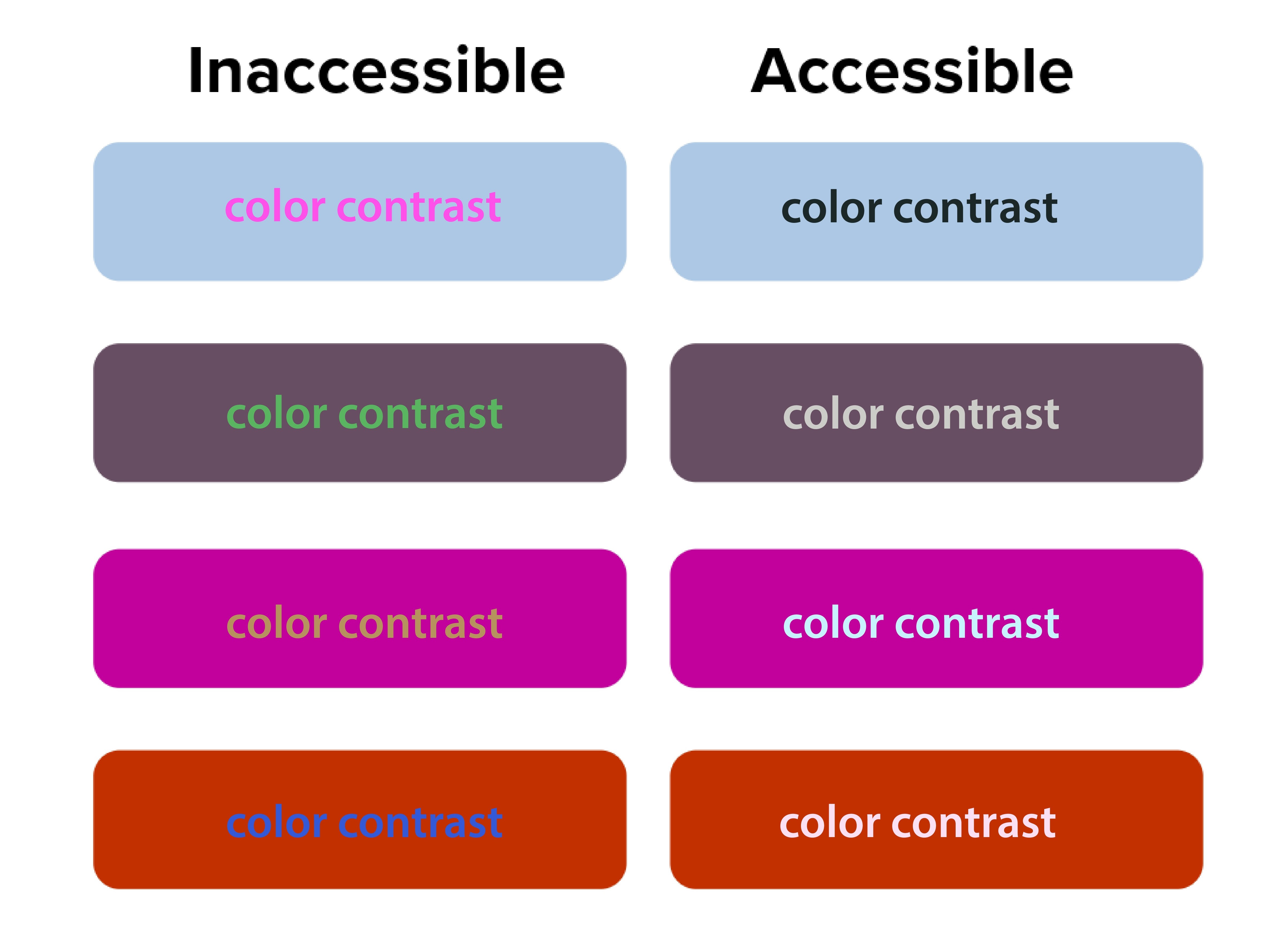
The squint test acts as a quick accessibility check. Elements that disappear when you squint likely have insufficient contrast. This is beyond aesthetics—proper contrast ratios are required for web accessibility compliance.

Source: San Diego State University

The Digital.gov accessibility guidelines emphasize creating “a clear hierarchy of importance by placing items on the screen according to their relative level of importance.”

Low contrast creates accessibility problems. The squint test naturally emphasizes contrast, making weak text-to-background combinations easy to spot. 90 million Americans over 40 have vision problems, and 7 million have vision impairment.

Orange you accessible?” featured a case where white text on orange buttons passed both squint tests and WCAG 2.1 color contrast checks. Before the fix, users with vision impairment missed key actions, but afterward, the click-through rate (CTR) improved by 18%.

Better font size and typography decisions

Typography choices become obvious during squint testing. Headers that should stand out but don’t indicate hierarchy problems. Body text that dominates the page suggests sizing issues.

If your body text disappears when squinting, your font size or weight may be too light. Adjusting typography can make a major impact.

NUMI Tech’s study on Typeform showed that the clearest forms were those with single, bold CTAs and solid font weight. People were more likely to finish forms if they quickly identified the main action, driving up completion rates.

Common Design Problems the Squint Test Reveals

Squint testing reveals hidden flaws that traditional review often misses, but many solo business owners unknowingly sabotage their own success with predictable visual hierarchy errors. These mistakes stem from trying to communicate everything at once instead of guiding visitors through a logical information sequence.

Cluttered layouts with too many competing elements

It may seem like everything is important on your website—especially the homepage. Your services, testimonials, about story, contact information, and credentials all compete for attention simultaneously. But when you squint at these sites, nothing stands out clearly because everything’s fighting for visual prominence. Then your web visitors leave because they can’t quickly identify the most relevant information.

Too many elements competing for attention creates visual chaos and overwhelms users. The squint test simplifies the noise, highlighting whether a dominant focus exists.

Ineffective CTA buttons, placement and styling

Source: EngageBay

CTAs that disappear during squint testing signal major conversion problems.

Your primary action button should be the star of your layout. If it vanishes when squinting, it’s likely too small, poorly colored, or positioned incorrectly. Conversion studies show button placement impacts click-through rates and increases revenue by 83%.

Your “Schedule a Discovery Call” or “Download My Free Guide” buttons should be among the most prominent elements when squinting. Yet many solopreneurs bury these important conversion elements in small text or low-contrast colors that disappear during the squint test.

Inconsistent branding across platforms

Your LinkedIn profile, website, email newsletters, and social media posts should pass the squint test with similar visual priorities. If your Instagram posts emphasize completely different elements than your website, you’re confusing potential clients about what matters most.

Web template constraints

Squarespace, Wix, Webflow and WordPress templates come with predetermined visual hierarchies that may not align with your business needs. Many solopreneurs accept these defaults without testing whether they actually guide attention to business-critical information.

Let’s get into more detail on the specific limitations of each platform.

Squarespace

Squarespace has beautiful templates but limits customization.

When performing the squint test on Squarespace sites, you’ll often find that template designers prioritized aesthetic appeal over conversion optimization. The large, gorgeous images that look stunning at full resolution might overwhelm your actual business message when viewed through the squint test lens.

To optimize within Squarespace’s constraints, focus on strategic content placement and typography choices. Use their built-in style editor to increase contrast on important elements. Choose templates where the navigation and primary call-to-action naturally pass the squint test, even if other elements need adjustment.

Wix

Wix provides complete creative freedom, which can be good and bad. The drag-and-drop interface allows you to place elements anywhere, but this freedom often results in layouts that fail basic hierarchy principles if you don’t have design experience.

Use Wix’s built-in design assistance features and grid alignment tools. Test your layouts frequently with the squint test as you build, rather than waiting until the site is complete. Pay special attention to mobile responsiveness, as Wix’s absolute positioning can create hierarchy problems on smaller screens.

Webflow

Webflow is best for advanced, tech savvy users, but offers powerful hierarchy control if you’re willing to learn it. The visual CSS editor allows precise control over typography, spacing, and color without coding knowledge. However, the learning curve can be steep for solopreneurs focused on growing their businesses rather than mastering web design.

WordPress

WordPress offers more flexibility but requires more decision-making.

The abundance of themes and customization options can actually hurt your visual hierarchy if you’re not careful. Many solopreneurs install multiple plugins and design elements that compete for attention, creating visual chaos that fails the squint test dramatically.

When working with WordPress, start with themes specifically designed for service businesses. Look for designs where testimonials, service descriptions, and contact information are visually prominent. Avoid themes with too many sidebar widgets or navigation options that could distract from your primary business goals.

Let’s shift to discussing how to use the squint test for your social media content.

The squint test for social media content

Social media platforms present unique visual hierarchy challenges because you’re competing for attention in crowded feeds with minimal time to make an impression. The squint test becomes even more critical when you have only seconds to capture someone’s interest as they scroll.

LinkedIn

LinkedIn requires professional hierarchy that builds authority.

Your posts need to establish credibility quickly while encouraging engagement. When you squint at successful LinkedIn content from coaches and other solopreneurs, you’ll notice that personal branding elements, key statistics, and clear value propositions remain most visible.

Here’s how you can do the same:

  • Start with an irresistible hook: Structure your LinkedIn posts with strong opening lines that remain readable when squinting.
  • White space and readable design: Use line breaks and formatting to create visual separation.
  • Branded photo: Include your professional photo consistently to build recognition.
  • CTA: Most importantly, ensure your call-to-action (whether it’s commenting, connecting, or visiting your website) stands out visually from surrounding content.

Instagram

Instagram demands immediate visual impact since the platform is inherently visual.

Your images need to pass the squint test independently of text elements. This is particularly important for content creators and voice actors who rely on visual storytelling to showcase their personality and expertise.

Test your Instagram posts by squinting at them in your phone’s preview before publishing. Your key message should be apparent even when details blur. Text overlays should contrast strongly with background images. For voice actors, ensure your recording setup or the subject of your post is prominently visible.

Facebook

Facebook’s algorithm favors engagement, making hierarchy crucial for organic reach.

Posts that capture attention quickly receive more comments and shares, which signals the algorithm to show them to additional people. The squint test helps ensure your most engaging elements like questions, compelling statistics, or striking visuals get noticed first.

YouTube

For video content across YouTube and all other social platforms, apply squint test principles to thumbnails and opening frames.

These elements determine whether people click to watch your content. Your face, key text, or compelling imagery should remain visible when squinting at thumbnail previews.

Use Visual Hierarchy in Your Email Marketing

Your email newsletters and marketing campaigns need strong visual hierarchy, because people scan emails even faster than websites.

Subject lines

Source: Grammarly

Subject lines represent the first level of your email hierarchy, but once opened, your email design takes over.

The squint test reveals whether your most important elements, like your value proposition, main CTA or key announcement, gets the appropriate visual emphasis.

Structure your emails with a single, clear focal point per message. If you’re promoting a new coaching program or event, that announcement should dominate the visual hierarchy. When you squint at the email preview, make sure the supporting elements like testimonials, bonus information, or secondary offers are visually subordinate to the main elements above.

Mobile optimization

According to Adestra, 61.9% of emails are opened on mobile devices. Your email hierarchy might work perfectly on desktop, but fail completely on phone screens. Always test your email campaigns with the squint test on both desktop and mobile before sending.

Many email marketing platforms provide mobile preview tools, but the squint test offers additional insight into whether your hierarchy actually works in practice. Your unsubscribe link should be minimally visible, while your main message and CTA should remain prominent even when squinting at a small screen.

How to Use the Squint Test for Your Content Marketing

Source: Styled Stock Society

Blog posts, resource guides, and lead magnets all benefit from strong visual hierarchy, particularly for solopreneurs who use content marketing to demonstrate expertise and attract clients.

Blogs

Long-form blog posts need hierarchical structure to maintain reader engagement. Your headline should pass the squint test by being significantly larger and more prominent than body text. Subheadings should create clear visual breaks that remain visible when squinting, helping readers scan for relevant information.

Use the squint test to evaluate whether your key points stand out sufficiently. Important statistics, quotes, or takeaways should be formatted to remain visible when details blur. This might mean using pull quotes, bullet points, or highlighting techniques that create visual emphasis.

Lead magnets

Lead magnets like webinars, checklists and resource guides serve 2 purposes: to provide immediate value to your audience and position you as an expert in your field. The squint test helps ensure these materials look professional and guide readers through the content logically.

Your lead magnets should have a clear visual hierarchy that makes them easy to scan and use. Key action items should be visually prominent, while supporting explanations can be less visually dominant.

Doing this makes your resources more valuable to busy professionals who need quick access to relevant information.

Case studies and testimonials

These items require strategic visual hierarchy to build credibility effectively.

The client’s results and your role in achieving them should be the most prominent elements when squinting. Supporting details about methodology or process can be visually secondary.

Measuring Squint Test Results and Success

Unlike large or mid-size companies with dedicated analytics teams, solopreneurs need simple ways to measure how visual hierarchy improvements impact business results. Understanding how to track and validate your design changes ensures continuous improvement in user experience.

Focus on the data that directly affect your business goals instead of vanity metrics that don’t drive revenue.

The value of squint testing shines when you measure real outcomes. All good design choices should have measurable impact. Squint testing delivers quick wins—and long-term gains.

Track website conversions

Monitor your consultation booking rates, email signup conversions, and resource download numbers before and after implementing squint test recommendations. Even small improvements in these metrics can significantly impact your business growth over time.

Set up Google Analytics goals for key actions like contact form submissions or resource downloads. Compare conversion rates month-over-month as you refine your visual hierarchy. A 1% improvement in conversion rate can mean substantial revenue increases for service-based businesses with high-value offerings.

Check your email engagement metrics

Source: Slide Team

Check whether your hierarchy improvements translate to better content performance. Open rates indicate whether your subject lines and sender name stand out in crowded inboxes.

Click-through rates (CTRs) show whether your email hierarchy successfully guides readers to take a specific action. CTRs on primary CTAs provide direct feedback about hierarchy effectiveness. If your main action button becomes more prominent after hierarchy adjustments, click-through rates should increase accordingly.

Monitor which types of visual hierarchy changes produce the best results for your specific audience. You might find that larger call-to-action buttons significantly improve click-through rates, or that restructuring your email templates increases consultation bookings.

Review your social media analytics

Source: BrandBastian

Track engagement rates on posts where you’ve applied squint test principles compared to older content. Look for patterns in which visual approaches generate more comments, shares, and profile visits.

Pay attention to the quality of engagement, not just quantity. Posts that successfully guide attention to your key messages should generate more relevant comments and inquiries from potential clients rather than just generic engagement.

Collect feedback

Qualitative feedback complements quantitative metrics. Ask visitors about their first impressions and navigation experience. This feedback often reveals hierarchy issues that metrics alone might miss.

Five-second tests work well for validating squint test improvements. If people can quickly identify your page’s purpose and main action within 5 seconds, your hierarchy is likely working effectively.

A/B test to validate squint test improvements

A/B testing validates squint test improvements with real user data.

Set up an A/B test where one design is optimized using findings from a squint test, while the other isn’t.

Focus on testing one hierarchy change at a time. This isolation helps you understand which specific improvements worked to drive results. Complex tests with multiple changes make it difficult to identify successful elements.

Monitor your design improvements over time

Visual hierarchy effectiveness can change over time as content updates and user expectations evolve. You should do squint testing regularly to be sure your design continues performing optimally.

Set up automated monitoring for key conversion metrics. Sudden drops might indicate hierarchy problems introduced during content updates or design changes. Regular testing catches these issues before they significantly impact performance.

Don’t stop testing after a single improvement. Monitor metrics monthly. Users’ expectations and devices change, so designs that pass now may need adjustments later.

Wrap Up

The squint test is a way to help improve how potential clients experience your marketing materials and websites. Instead of guessing if your content captures attention effectively, you can quickly evaluate and refine your visual hierarchy to guide visitors toward the actions that will grow your business.

Whether you’re using Squarespace templates, creating LinkedIn posts, or designing email newsletters, the squint test shows whether your most important messages get the appropriate visual emphasis. For coaches, consultants, content creators, and voice actors competing in crowded and competitive spaces, this competitive advantage costs nothing to implement, but can dramatically improve business results.

Every visual choice should either guide potential clients toward working with you or provide value that builds your authority in your field. The squint test ensures these priorities remain clear even when visitors are scanning quickly through their busy digital lives.

Start with your homepage. Squint at it, adjust what doesn’t work, and begin building a visual hierarchy that turns casual visitors into paying clients.


References

Accessibility for visual designers. (2018). Digital.gov. Retrieved from https://digital.gov/guides/accessibility-for-teams/visual-design/

Çakırca, S. (2025). 150+ UX (User Experience) Statistics and Trends (Updated for 2025). UserGuiding. Retrieved from https://userguiding.com/blog/ux-statistics-trends

Do You Look Legit? The Psychology Behind Website Design & Credibility. (n.d.). Rosewood. Retrieved from https://rosewoodmarketing.ca/do-you-look-legit-the-psychology-behind-website-design-credibility/

Fast Facts: Vision Loss. (2024). (n.d.). CDC. Retrieved from https://www.cdc.gov/vision-health/data-research/vision-loss-facts/index.html

Five-Second Testing: Step-by-Step Guide + Example. (2025). Maze. Retrieved from https://maze.co/collections/user-research/five-second-test/

Increase Conversion Rates with High Quality Design: A Comprehensive Guide. (2024). Roger West. Retrieved from https://www.rogerwest.com/design/increase-conversion-rates-with-high-quality-design/

Kennedy, E. D. (2020). UI Tutorial: Scheduling App Redesign (in under 10 Minutes). Learn UI Design. Retrieved from https://www.learnui.design/blog/squint-test-ui-design-case-study.html

Learning from the Best: Top CRO Case Studies. (2025). Retrieved from https://lineardesign.com/blog/conversion-rate-optimization-case-studies/

Lindgaard, G., Fernandes, G., Dudek, C., & Brown, J. (2006). Attention web designers: You have 50 milliseconds to make a good first impression! Behaviour & Information Technology, 25(2), 115-126. Retrieved from https://www.tandfonline.com/doi/abs/10.1080/01449290500330448

Looking Ahead: Improving Our Vision for the Future. (2024). CDC. Retrieved from https://www.cdc.gov/vision-health/data-research/vision-loss-facts/improving-vision-for-future.html

Nielsen, J. (2015). Legibility, Readability, and Comprehension: Making Users Read Your Words. Nielsen Norman Group. Retrieved from https://www.nngroup.com/articles/legibility-readability-comprehension/

Seastrand, E. (2019). Orange You Accessible? A Mini Case Study on Color Contrast. UX Design. Retrieved from https://uxdesign.cc/orange-you-accessible-65afa6cf0a2

Steven, K. (2024). 45 Urgent Call-to-Action Statistics for Marketers. Persuasion Nation. Retrieved from https://persuasion-nation.com/call-to-action-statistics/

The Squint Test: Accessibility Test for Every Interface. (n.d.). NUMI. Retrieved from https://www.numi.tech/post/the-squint-test-accessibility-test-for-every-interface

van Rijn, J. (2025). The ultimate mobile email statistics overview. Email Monday. Retrieved from https://www.emailmonday.com/mobile-email-usage-statistics/

Clean Up Your Website: Find SEO Success by Content Pruning

Clean Up Your Website: Find SEO Success by Content Pruning

Content Marketing SEO UX

As a solopreneur, every minute you spend on your website counts. Are you wasting time on content that’s actually hurting your SEO?

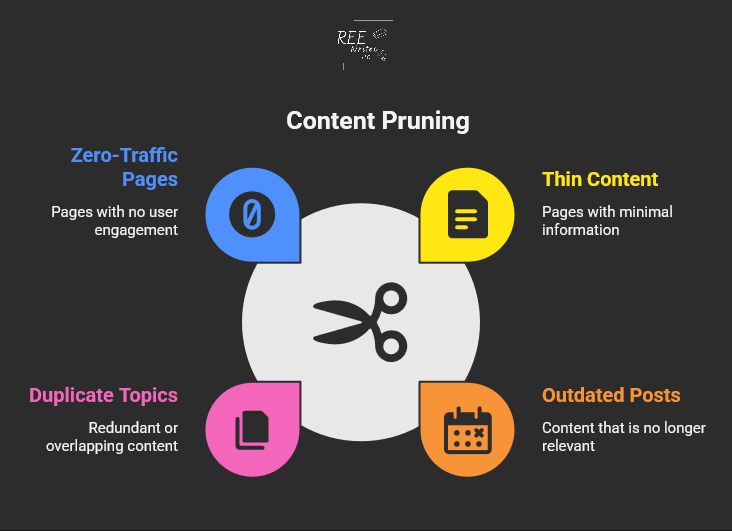
Content pruning is the process of removing or improving low-quality, outdated, or duplicate pages from your website to boost overall site performance.

Think of it as cleaning out your digital closet—keeping what works and tossing what doesn’t serve you anymore.

“Less is more” rings true in SEO—prune unhelpful content and watch your important pages grow. Removing old or weak web pages often leads to better search rankings. When you use content pruning as part of a content audit, you can boost traffic, streamline your site, and help search engines focus on your best work.

Contents

You might think having more content is always a good thing, but that’s not the case.

Why Content Pruning Matters for Your Site

When I first started my business, I thought a bigger blog meant more traffic.

I was wrong. More content doesn’t necessarily equal better SEO results.

Google’s algorithm focuses on quality over quantity, which means weak pages can actually hurt your site’s authority.

According to a recent case study, HomeScienceTools.com saw a 64% increase in strategic content revenue after removing just 200 underperforming blog posts. That’s impressive results from deleting content, not adding it.

How much could your business benefit from a 64% increase in revenue? A lot, I bet.

Common types of content to prune

If you’re ready to get started, you need to know what kinds of pages to look for:

  • Thin content: Pages with little useful information
  • Outdated posts: Content with old dates or incorrect facts
  • Duplicate topics: Multiple pages targeting the same keywords
  • Zero-traffic pages: Content that gets no visits or engagement

Taking action to remove or improve your content is a crucial part of a full website review. The key is finding pages that drain your site’s SEO power without giving anything back in return.

Benefits you’ll see from pruning content

So, what’s in it for you? A clean website leads to some amazing results.

Content pruning plays a major role in comprehensive website and content audits. When you remove content with no value, you’re essentially telling search engines to focus on your best content instead of wasting time on weak material.

Robotic spider crawling the web with papers

Here’s what happens when you clean up your site:

A case study by Seer Interactive shows the real impact of content pruning. Their client experienced declining traffic for five years straight. After removing 14,000 low-value pages, they achieved a 23% increase in organic traffic year-over-year.

Imagine what a 23% traffic increase could do for your business.

Steps to Prune Your Website

Ready to clean up your site? Here’s a simple process that works for websites of any size.

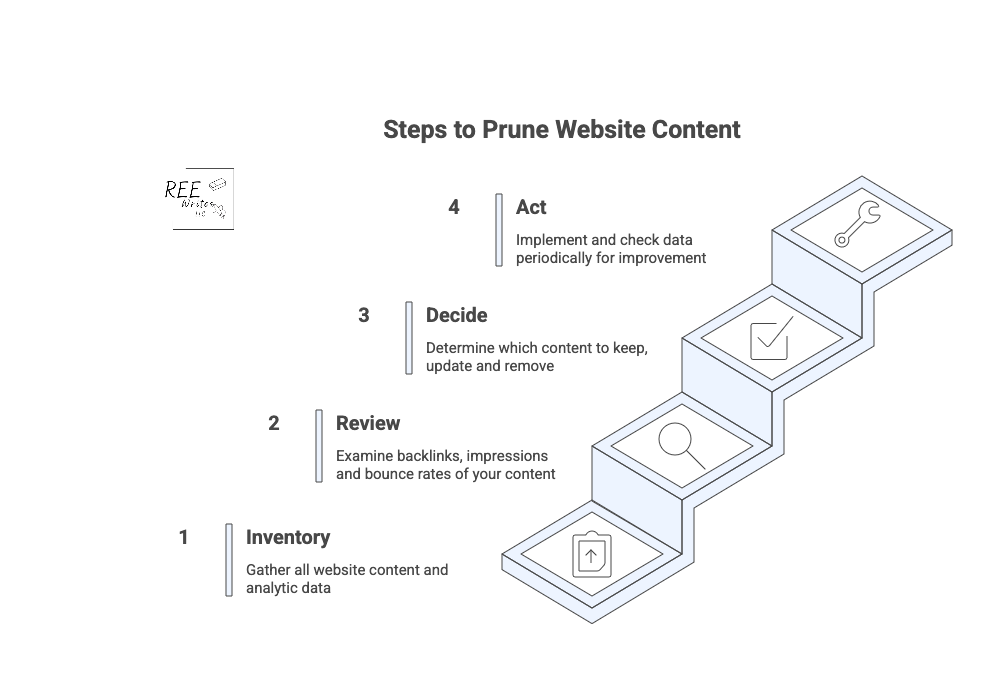
4 steps to prune your website content

Conduct a full content inventory

Start by creating a complete list of all your pages. You can use tools like:

  • Google Analytics for traffic data
  • Google Search Console for search performance
  • Screaming Frog for technical crawls
  • Your content management system (CMS) export for a basic page list

Export everything into a spreadsheet so you can analyze the data easily. (I’ve listed more tools further in this article.)

Review analytics to find problem pages

Look for pages that meet these criteria:

  • Less than 50 organic sessions in the past 12 months
  • Fewer than 50 search impressions
  • No backlinks from other sites
  • High bounce rates with short time on page

CNET’s recent content pruning experiment shows how powerful this can be. They removed thousands of articles and saw a 29% increase in organic traffic in just two months.

What could a 29% traffic increase could do for your business in two months?

Make decisions about each page

For every underperforming page, you have four options:

  1. Keep as-is: High-quality content that just needs time
  2. Update: Good topics that need fresh information
  3. Merge: Combine similar pages into one stronger piece
  4. Delete: Remove pages that serve no purpose

Don’t rush this step. Take time to evaluate each page’s potential value.

To make sure you get the best results, it’s smart to follow a clear process that we’ll go over next.

Best Practices for Effective Content Pruning

Source: Styled Stock Society

Following a clear process helps you avoid mistakes and get better results from your pruning efforts.

Keep a regular schedule

Content pruning works best as an ongoing process, not a one-time cleanup.

You should review your content every quarter, or 6 to 12 months as part of your regular SEO maintenance to prevent low-quality content from building up over time and keep your site performing at its best.

Use a systematic approach

The most successful content pruning follows these steps:

  1. Inventory: List all your content
  2. Audit: Analyze performance data
  3. Decide: Choose what to keep, fix, or remove
  4. Act: Implement your changes carefully

Follow this methodical approach so you don’t accidentally delete valuable content or create technical difficulties.

When you delete pages, always set up 301 redirects to send visitors and search engines to relevant replacement content. This preserves any SEO value the old page had.

Also check for:

Avoid These Common Pruning Mistakes

Source: Inquivix

Even with a good plan, it’s easy to make pruning mistakes. Here are the biggest pitfalls to watch out for.

Removing valuable pages that need updates

Don’t delete content just because it’s old. Some pages have good bones or evergreen content, but need fresh information or better optimization.

Before removing any page, ask yourself:

  • Does this topic still matter to my audience?
  • Could I make updates to improve this content instead of deleting it?
  • Are there any valuable backlinks I’d lose if I delete this?

Source: Bluehost

One of the costliest mistakes is deleting pages without setting up proper redirects. This creates 404 errors and frustrated users. Always redirect deleted pages to the most relevant existing content on your site.

Not involving stakeholders

Content pruning can affect other parts of your business. For instance:

  • Marketing campaigns may link to pages you’re considering for removal.
  • Sales teams might reference specific articles.

Since solopreneurs make all the decisions, you don’t have a team to notify before making major changes and deletions. Just be sure to document your decisions in case you ever decide to outsource.

Make Content Pruning Easier with These Tools

Source: Webgator

The right tools can speed up your content audit and help you make better decisions about what to keep and what to get rid of.

Essential analytics tools

Start with these free options:

  • Google Analytics: Shows traffic, bounce rates, and user behavior
  • Google Search Console: Reveals search performance and indexing issues
  • Screaming Frog: Crawls your site for technical SEO problems

For deeper analysis, consider paid tools like:

  • Ahrefs: Comprehensive SEO data and competitor research
  • SEMrush: Keyword tracking and content gap analysis
  • Clearscope: Content optimization and performance insights

Simple scoring systems

Create a simple point system to evaluate each page:

  • Traffic: 0 to 10 points based on monthly visitors
  • Engagement: 0 to 10 points for time on page and bounce rate
  • Links: 0 to 10 points for backlinks and internal links
  • Relevance: 0 to 10 points for topic alignment with your goals

Pages scoring below 15 to 20 points are good candidates for pruning.

Organizing your audit data

Use spreadsheets to track your decisions and results. Include columns for:

  • URL and page title
  • Current performance metrics
  • Action taken (keep, update, merge, delete)
  • New redirect URL (if applicable)
  • Implementation date

This documentation helps you track results and avoid repeating work.

Wrap Up

Content pruning is a smart way to strengthen your SEO and help your site’s best content shine. Include regular audits to review and trim low-quality content, to keep your site health and support higher search rankings.

It may seem like a big job, but remember, every small step you take to improve your website’s health is a win for your business. By focusing on quality, you’re not just improving your SEO; you’re building a stronger, more efficient business that works for you.

Try content pruning in your next website audit for greater visibility.

References

Ashbridge, Z. (2025). Content pruning: Boost SEO by removing underperformers. Search Engine Land. Retrieved from https://searchengineland.com/guides/content-pruning

Content Pruning: Remove Low-Quality Content to Improve SEO. (2025). Conductor. Retrieved from https://www.conductor.com/academy/content-pruning/

Content Pruning Efforts Content Pruning. (2023). Seer Interactive. Retrieved from https://www.seerinteractive.com/work/case-studies/content-pruning-efforts-help-reverse-traffic-loss

Deleting Website Content? SEO Best Practices. (n.d.). Slim SEO. Retrieved from https://wpslimseo.com/deleting-website-content-seo-best-practices/

Goodwin, D. (2023). Improving or removing content for SEO: How to do it the right way. Search Engine Land. Retrieved from https://searchengineland.com/improving-removing-content-seo-guide-430571

Gray, T. (2022). Content Pruning Case Study: How This Online Store Increased Strategic Content Revenue by 64%. Inflow. Retrieved from https://www.goinflow.com/blog/content-pruning-case-study/

Højris Bæk, D. (2024). Content Pruning Case Study: CNET search data suggests it works. SEO.AI. Retrieved from https://seo.ai/blog/content-pruning-case-study-cnet

Huang, B. (2024). What is Content Pruning and Why it Matters for SEO. Clearscope. Retrieved from https://www.clearscope.io/blog/what-is-content-pruning

Patel, N. (2024). Examining a Content Pruning Case Study. BacklinkManager. Retrieved from https://backlinkmanager.io/blog/examining-content-pruning-case-study/

In a Time Crunch? Here’s How to Do a Content Audit in 15 Minutes

In a Time Crunch? Here’s How to Do a Content Audit in 15 Minutes

Content Marketing SEO UX

A full content audit can feel like a massive project, taking days or even weeks to complete. But you’re busy running a business—nobody’s got time for that.

What if you could find your biggest content problems and opportunities in the time it takes to drink your morning coffee? ☕

You don’t need to block out your entire week to make a real impact on your website’s performance. This guide will walk you through a simple, focused process to audit your website’s content in just 15 minutes.

We don’t need to find every little flaw. In 15 minutes, you can spot the “low-hanging fruit,” or quick fixes that can boost your organic traffic and improve your site’s user experience (UX) right now.

Let’s set a timer and get started.

Contents


What’s the difference between a content gap analysis and a content audit?

Before we dive in, let’s clear something up. People often use the terms “content audit” and “content gap analysis” interchangeably, but they are two very different tasks with different goals. Knowing the difference helps you choose the right tool for the job.

Define the terms “content gap analysis” and “content audit”

A content audit is like looking in the mirror. You’re analyzing the content you already have on your website. The goal is to evaluate its performance, find weaknesses, and see what’s working well. You’ll look at metrics like page views, keyword rankings, and bounce rates to decide if a piece of content should be kept, updated, or removed.

A content gap analysis on the other hand, is like looking out the window at your neighbors. You’re researching what content your competitors have that you don’t. The goal is to find topics and keywords that your audience is searching for but that you haven’t covered. This helps you plan future content that can attract a wider audience.

When to do a content gap analysis

You should run a content gap analysis when you’re focused on growth and expansion. It’s the perfect tool for when you need to:

When to do a content audit

You should perform a content audit when you want to improve what you already have. It’s your go-to move for content consolidation and optimization. An audit is ideal when you need to:

  • Improve the performance of underperforming content.
  • Clean up outdated or irrelevant pages (thin content).
  • Find quick SEO wins to boost your rankings.
  • Ensure your existing content still meets your quality standards and business goals.

For example, case studies by cognitiveSEO show that several companies who conducted content audits led to significant increases in organic traffic just by pruning and improving existing content.

Source: Search Engine Land

What a 15-minute content audit can show you

This quick audit is all about speed and impact, so we’re not getting lost in the weeds. We’re looking for a handful of actionable insights that can make a difference right away.

Here are some things to do before you start that 15-minute timer.

Set realistic goals for a quick audit

In 15 minutes, you won’t be able to analyze every single page on your site, and that’s okay.

Your goal is simple: find 3 to 5 high-impact action items. This could be identifying a blog post to update, a title tag to rewrite, or a broken page to redirect.

Focus on big problems, not small details

This audit uses the 80/20 principle. We’re looking for the 20% of problems that are causing 80% of your performance issues.

Don’t worry about a typo on a page that gets two visits a month. Instead, focus on a high-traffic page with a terrible bounce rate or a page that has high impressions but almost no clicks. These are the big problems that, once fixed, deliver the biggest returns.

Identify your content’s “low-hanging fruit”

“Low-hanging fruit” refers to opportunities that require minimal effort for maximum gain. In a quick content audit, this typically includes:

  • Pages ranking on the bottom of page one or the top of page two in Google search results.
  • Content with high impressions but a low click-through rate (CTR).
  • Popular posts that can be updated with new information to boost their rankings further.
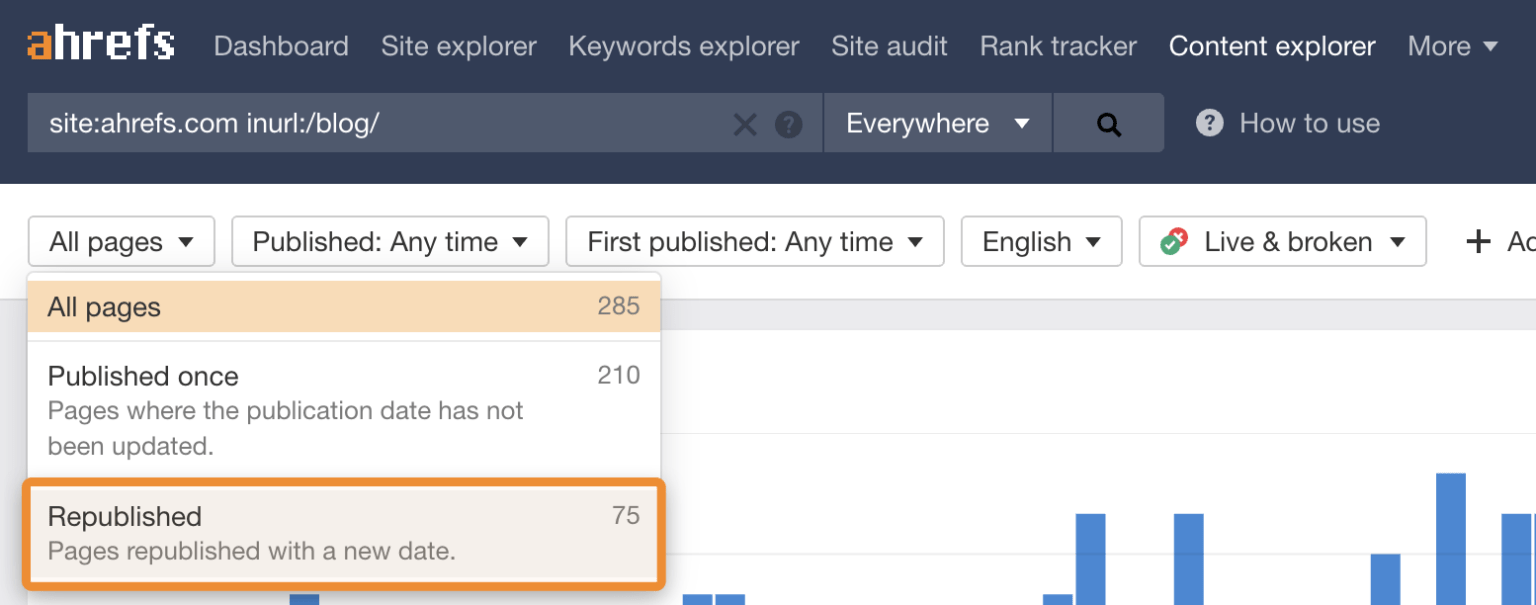
Source: Ahrefs

Updating existing content is one of the fastest ways to see results. Ahrefs continuously refreshes and republishes old blog posts with new data and optimized keywords to increase their organic traffic.

Think of this as a first step, not a complete fix

This 15-minute audit is like a health screening, not major surgery. It’s designed to give you a quick, actionable snapshot of your site’s condition. It will give you a clear to-do list to get started on, but it won’t replace the need for a deeper, more comprehensive audit every 6 to 12 months.

Create a content inventory or content audit matrix

To keep your findings organized, you need a simple content inventory spreadsheet, sometimes called an inventory or matrix.

Don’t overcomplicate it. Create a new sheet with these basic columns:

  • URL: The address of the page.
  • Topic/Keyword: The main topic the page covers.
  • Traffic (30 days): The number of sessions from organic search.
  • Impressions (30 days): How many times it appeared in search results.
  • CTR (30 days): The click-through rate, or how many times someone clicked on your webpage.
  • Action: A simple note on what to do (“Update,” “Improve Title,” “Redirect”).

Here’s how to do a content audit in 15 minutes.


Minutes 1 to 2: Get your tools ready

Source: Styled Stock Society

Okay, it’s time to start the clock! ⏱️ The first two minutes are for getting your workspace set up. Efficiency is key, so have these tools open and ready to go.

Get these tools for an effective content audit

For this quick audit, you only need three things, and they’re all free:

  1. Google Search Console (GSC): Shows how your site performs in Google search.
  2. Google Analytics (GA): Reveals what visitors do once they are on your site.
  3. A spreadsheet: Google Sheets or Excel to create your content inventory.

(Paid tools like Ahrefs and Semrush are fantastic for deep dives, but you don’t need them for this rapid-fire check-up.)

Open your Performance report in Google Search Console

Log in to your Google Search Console account. Then go to the Performance report, and set the date range to the last 28 or 30 days.

This is where you’ll find data straight from Google, including impressions, clicks, CTR, and your average position for different queries.

Access your All Pages report in Google Analytics

In a separate tab, open your Google Analytics (GA4) account. Go to Reports > Engagement > Pages and screens.

Filter the report to show only organic search traffic. This view will show you your most visited pages, average engagement time, and other on-site metrics.

Prepare a simple spreadsheet or a notepad

Have your spreadsheet ready with the columns we discussed earlier. As you go through the next steps, you’ll quickly paste in URLs and jot down notes. This prevents you from getting sidetracked and ensures you have a clear action plan when the 15 minutes are up.

Use a timer to stay on track

Set a real timer on your phone or computer for 15 minutes. This creates a sense of urgency and forces you to stay focused on the high-impact tasks instead of falling down a rabbit hole of data analysis.


Minutes 3 to 7: Find your best and worst pages

With your tools open and your timer running, it’s time to dig in. In this four-minute block, you’ll be a detective, quickly scanning for clues about your content’s health.

Spot your top-performing content

In Google Analytics, sort your Pages and screens report by organic users to see your most popular pages. These are your workhorses.

For the top 3 to 5 pages, ask yourself: “Is this content fully up-to-date?” and “Can I add internal links from this page to other important pages?” Add these URLs to your spreadsheet with a note like “Check for internal linking opportunities.”

Find pages with high impressions but low clicks

Switch back to Google Search Console. In the Performance report, click the Pages tab. Then filter your results to find pages that have a high number of impressions but a low CTR.

Backlinko found that simply moving from position #3 to position #2 in search results can double your CTR, and improving your title tag is a key way to do that. So add 2 or 3 of these URLs to your spreadsheet with the action: “Rewrite title/meta to improve CTR.”

Look for important pages with almost zero traffic

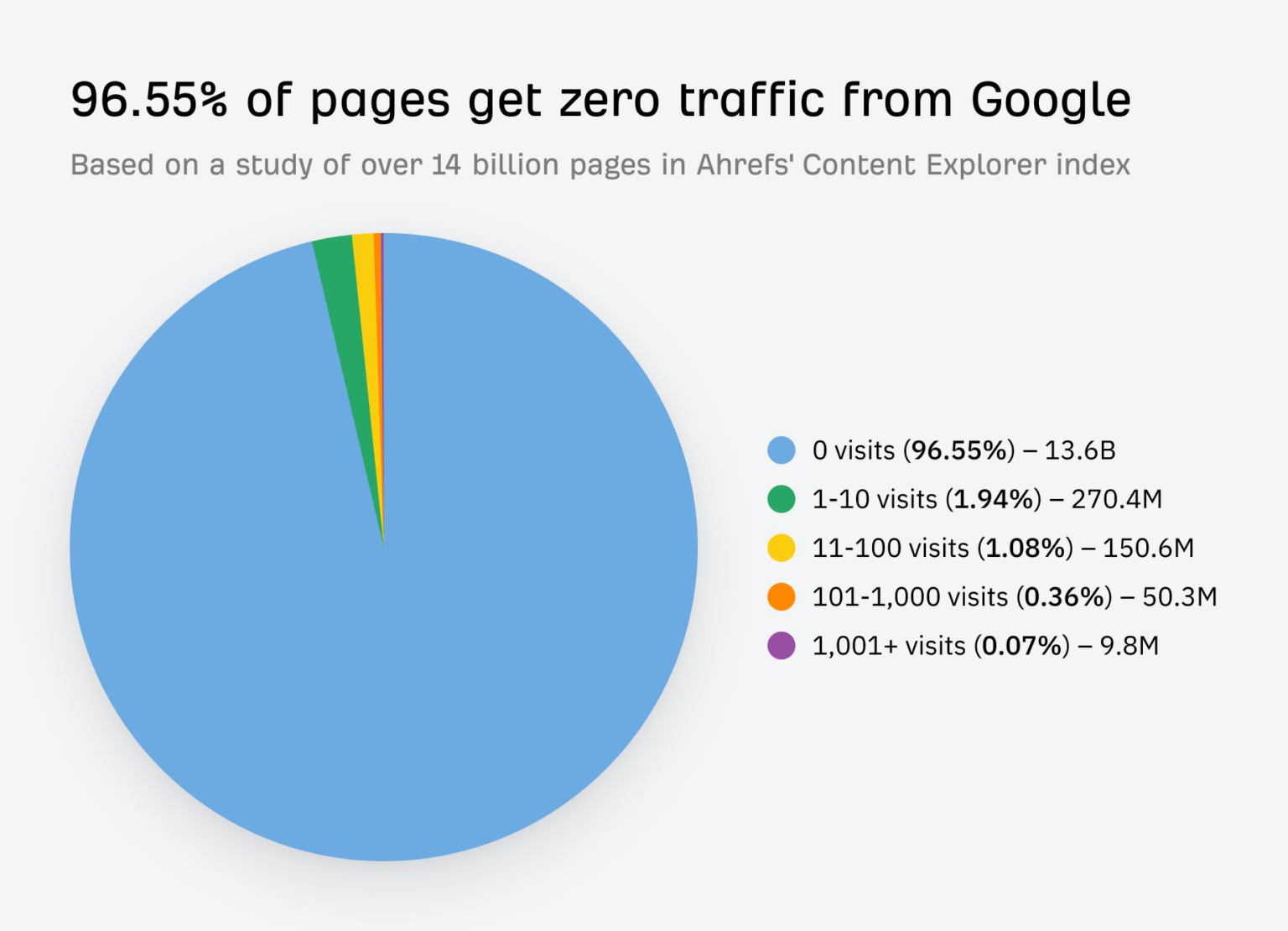
Source: Ahrefs

Do you have important product pages or cornerstone or pillar blog posts that aren’t getting any love from Google?

Scan your page list in GA for these critical assets. If they have very few organic sessions, they are prime candidates for an update. Some estimates suggest for many sites, over 50% of their content gets almost no traffic, and with the rise of AI Overviews in search, zero-click searches are the new normal.

Mark 1 or 2 of pillar posts in your spreadsheet with: “Needs a full refresh and re-optimization.”

Note pages that get traffic but have a high bounce rate

Back in Google Analytics, look for pages that get a decent amount of traffic but have a low average engagement time. This often signals a mismatch between what the user expected to find (based on your title) and what the page actually delivers.

This is a red flag for a poor user experience. Add one of these pages to your spreadsheet with the note: “Review for search intent mismatch.”


Minutes 8 to 12: Look for quick SEO wins

Now that you’ve identified some key pages, let’s spend the next four minutes looking for technical and on-page issues that are easy to fix but can have a big impact.

Check for pages with missing title tags

A missing or duplicate title tag is a basic SEO mistake that can hold your webpage back. You can spot these using GSC or a free browser extension.

If you find any, fixing them is one of the quickest wins you can get. A unique, compelling title tag is critical for both search engines and users.

Find content that ranks for the wrong keywords

In GSC, click on a specific page from your list, then click the “Queries” tab. Are the keywords listed here relevant to your page’s content?

Sometimes a page will rank for an unexpected term. This isn’t always bad! It could be an opportunity to re-optimize the page for that term or create a new piece of content that serves that search intent even better.

Source: Zyppy

Internal linking is one of the most underrated SEO tactics. It helps Google understand your information architecture and spreads authority throughout your site.

Look at one of your top-performing blog posts you found earlier. Read through it and see if there are any places where you can naturally link to a weaker (but important) page. Strategic internal linking can boost your site’s organic traffic.

Note any obvious UX problems

Quickly open the pages on your list in a new tab. How do they look? Have you viewed these pages on a mobile device?

Check for things that would annoy a user, like:

  • Aggressive pop-ups that block the content.
  • Slow load times.
  • Text that’s hard to read.
  • Broken images or videos.

Make a quick note of any glaring UX issues in your spreadsheet. Fixing these can directly impact how long people stay on your site and how Google perceives its quality.


Minutes 13 to 15: Decide what to do next

The timer is about to go off! In these final minutes, your goal is to turn your messy notes into a clean, prioritized action plan. This is where the audit becomes truly valuable.

Use a simple “keep, update, or remove” framework

Source: SEOBuddy

For every URL in your spreadsheet, assign it one of three statuses:

  • Keep: The content is performing well and is up-to-date. No action is needed right now.
  • Update: The content has potential but needs work. This could be a small tweak (like a new title), combining elements from two or more posts, or a major rewrite.
  • Remove: The content is outdated, irrelevant, and gets no traffic. These pages can be deleted and redirected (using a 301 redirect) to a more relevant page, called content pruning. Pruning this “dead weight” can sometimes improve your site’s overall SEO health.

Prioritize tasks that will have the biggest impact

How do you choose your priorities? Go back to the 80/20 rule. Which task will likely drive the most traffic or conversions for the least amount of effort? Updating the title tag on a page with 50,000 monthly impressions is more important than fixing a typo on a page with 10 monthly impressions (although you can do the latter quickly).

Look at your list of “Update” and “Remove” tasks, and choose the 3 to 5 you think will have the biggest and fastest impact. This is your official to-do list. You can’t do everything at once—save the rest for later.

Schedule a deeper audit for a later date

Finally, acknowledge that this was just a sprint. Put a reminder on your calendar three or six months from now to perform a more in-depth site audit. Consistent, iterative improvement is the key to a long-term, successful content performance strategy.

Your 15-Minute Audit is Complete!

And just like that, within just 15 minutes, you’ve moved from feeling overwhelmed by your website’s content to having a clear, prioritized list of actions that can improve your SEO.

This quick content audit proves you don’t need weeks to make real progress. While it doesn’t cover everything, it gives you an actionable list to start improving your SEO and providing more value to your audience right away. Run this quick check today and take the first step toward more organic traffic.

You don’t need weeks to make progress. By focusing on high-impact tasks and ignoring the small stuff, you can make meaningful changes quickly. Now, take that short to-do list you created and schedule time to get it done. Run this quick audit every quarter, and you’ll build powerful momentum toward better rankings and a healthier website.


References

Antara. (2025). Google AI Search Impact: Website Traffic Slashes by 50%. Analytics Insight. Retrieved from https://www.analyticsinsight.net/news/google-ai-search-impact-website-traffic-slashes-by-50

Content pruning for SEO. (n.d.). LearningSEO. Retrieved from https://learningseo.io/seo_roadmap/deepen-knowledge/content/content-pruning/

Dean, B. (2022). We Analyzed 4 Million Google Search Results. Here’s What We Learned About Organic Click Through Rate. Backlinko. Retrieved from https://backlinko.com/google-ctr-stats

Hardwick, J. (2020). Republishing Content: How to Update Old Blog Posts for SEO. Ahrefs. Retrieved from https://ahrefs.com/blog/republishing-content/

Sauciuc, A. (2025). Is Content Pruning Good for SEO? Case Studies + Experts’ Opinions. cognitiveSEO. Retrieved from https://cognitiveseo.com/blog/17548/content-pruning-for-seo/

Shepard, C. (2025). 23 Million Internal Links – SEO Case Study. Zyppy. Retrieved from https://zyppy.com/seo/seo-study/

Soulo, T. (2023). 96.55% of Content Gets No Traffic From Google. Here’s How to Be in the Other 3.45% [New Research for 2023]. Ahrefs. Retrieved from https://ahrefs.com/blog/search-traffic-study/

“It Needs to Sound More Conversational”: Simple Hacks to Write More Human-Sounding Copy to Engage Your Audience

“It Needs to Sound More Conversational”: Simple Hacks to Write More Human-Sounding Copy to Engage Your Audience

Content Marketing Copywriting UX

Ever read a block of text and felt completely lost? It happens. A lot of writing sounds stiff, formal, and, well, robotic. It’s packed with jargon and complex sentences that make you feel like you need a secret decoder ring just to understand the main point.

But what if you could write in a way that truly connects with people? What if your words could make them feel like they’re having a friendly chat with you over a cup of coffee?

In a world where attention is the most valuable currency, how you say something is just as important as what you say.

A conversational style, with its simple language and direct address, is perfectly designed for this behavior. It grabs attention, pulls readers in, and holds them there.

Let me show you how to adopt a conversational writing style to build trust, boost engagement, and keep your readers hooked from the first sentence to the last.

Contents

What is a Conversational Writing Style?

Source: Styled Stock Society

Conversational writing is a style that mimics the patterns and rhythm of natural, spoken conversation. It’s warm, approachable, and personal.

Think of it as writing for a friend rather than for a panel of judges. The goal is to close the distance between you and your reader, making your message feel less like a lecture and more like a one-on-one dialogue.

This approach isn’t just about sounding friendly; it’s a strategic choice that can have a big impact on how your audience receives your message.

Write the way you talk (but better)

It’s popular advice to “write like you talk.” This is a great starting point, but actually, when you write the way you talk, you should make it clearer and more concise.

When we speak, we often ramble, use filler words (“um,” “like,” “you know”), and jump between ideas. But conversational writing takes the best parts of talking—the natural flow, the simple vocabulary, the personal touch—and edits out the messiness.

It’s a polished version of your spoken voice that keeps the personality, while ensuring the message is direct, organized, and easy to follow. (You’re aiming for the clarity of a great public speaker, not the rambling of a long, unfocused story.)

The difference between a conversational and a formal tone

The easiest way to understand conversational writing is to see it next to its opposite: formal writing. Formal writing is what you see in academic papers, legal documents, or traditional corporate reports. It’s impersonal, objective, and often complex.

A few examples:

Formal ToneConversational Tone
The organization will implement a new strategy to enhance customer satisfaction.We’re rolling out a new plan to make you, our customers, happier.
All employees are required to complete the mandatory training by the specified deadline.Hey team, please make sure you finish the required training by the deadline.
Further investigation is needed to ascertain the cause of the discrepancy.We need to look into what caused this issue.
It has been determined by management that remote work will be permitted on Fridays.Good news! We’ve decided you can work from home on Fridays.

See the difference? The conversational examples are direct, use personal pronouns, and feature simpler words. They feel more human and are much easier to understand at a glance.

How a conversational style builds trust with your audience

Trust is the foundation of any good relationship, which includes the one between you and your audience. A conversational tone helps build that trust by making your brand or message feel more authentic and relatable.

When you write in a stiff, corporate voice, you create a barrier. It can feel like you’re hiding behind a wall of formality. In contrast, a conversational voice feels open and honest. It signals that there’s a real person behind the words.

A brand voice that is authentic and consistent helps build customer trust and loyalty over time because it makes the brand more memorable and reliable (Gaidar, 2023). People trust what they can understand and who they feel connected to. By ditching the corporate-speak, you’re telling your readers, “We’re on the same level, and we want to help you.”

How it improves clarity and readability

Source: Styled Stock Society

Have you ever tried to assemble furniture using a poorly written instruction manual? It’s frustrating because it’s not clear.

Conversational writing is all about clarity. It prioritizes simple language, active voice, and shorter sentences—all elements that make your text easier to read and understand.

This isn’t just a matter of preference; it’s about how our brains process information. When text is easy to read, it lowers the “cognitive load,” meaning your reader doesn’t have to work as hard to get the message. This makes them more likely to stay on the page and absorb what you’re saying.

Plain language is for everyone—even experts—because all users appreciate content that is clear, concise, and easy to understand.

Now that you understand what conversational writing is and why it’s so effective, let’s get into the practical side of things. How do you do it?

Simple Tricks to Write in a Conversational Tone

Adopting a conversational tone isn’t about changing who you are; it’s about letting more of your natural voice shine through in your writing. Here are some simple, powerful techniques you can start using right now.

Use the first and second person (“we,” “I,” and “you”)

This is the fastest way to make your writing feel like a dialogue.

  • “You” and “Your”: These words speak directly to the reader, making them feel seen and included. It changes the experience from passive observation to active participation. Instead of “A user can benefit from this feature,” you’d write, “You can benefit from this feature.”
  • “I” and “We”: These pronouns establish your presence in the conversation. “I” adds a personal touch and shows you’re sharing your own perspective. “We” creates a sense of community and shared purpose, making the reader feel like they’re part of a team.

Write with simple words and avoid jargon

Source: Norman Nielsen Group

Imagine you’re explaining a topic to a friend who knows nothing about it. You wouldn’t use technical jargon or complicated vocabulary, would you? You’d use simple, everyday words. Do the same in your writing.

Industry-specific terms can make you sound smart to your peers, but they alienate everyone else. If you absolutely must use a technical term, take a moment to explain it in simple language.

For example:

  • Instead of: “We must leverage our core competencies to synergize our cross-functional teams.”
  • Try: “We need to use our team’s main strengths to work together more effectively.”

Clarity always wins over complexity.

Use contractions like “you’re,” “it’s,” and “don’t”

In spoken conversation, we naturally use contractions. We say “don’t” instead of “do not” and “it’s” instead of “it is.” Using them in your writing is a simple cue that tells the reader your tone is informal and friendly.

For a long time, formal writing guides advised against contractions, but for modern web content, they are essential for creating a natural, conversational flow. Omitting them can make your writing sound stiff and overly formal.

Ask your reader direct questions

Source: Learn English with Harry

Have you noticed how questions are used in this article? Questions are a powerful tool for engagement. They break up the text, create a mental pause for the reader, and encourage them to think about the topic in a personal way.

You can use questions to:

  • Introduce a new section.
  • Check for understanding (“Make sense?”).
  • Encourage reflection (“What would you do in this situation?”).
  • Make a point more impactful.

Asking questions turns a monologue into a dialogue, even if the reader’s answer is only in their head.

Keep your sentences and paragraphs short

When you talk, you naturally pause for breath. Short sentences and paragraphs create a similar rhythm in your writing. They serve as visual and mental resting spots for your reader.

Long walls of text are intimidating, especially on a screen. Here’s a good rule of thumb:

  • Sentences: Aim for an average of 15 to 20 words. Mix it up with some very short sentences for emphasis. Like this.
  • Paragraphs: Try to keep paragraphs to 3 to 4 sentences. A one-sentence paragraph can also be very effective for highlighting a key idea.

This structure makes your content more scannable and much less overwhelming for your audience.

Tell a story or use a good analogy

Source: Techfunnel

Humans are wired for stories. We’ve been using them to share information and connect with each other for thousands of years. A well-placed story or analogy can make even the most complex topic relatable and memorable.

Neuroeconomist Paul J. Zak’s research, featured in Harvard Business Review, shows that our brains release oxytocin—a chemical associated with empathy—when we are engaged in a compelling narrative. This neurochemical response makes us more likely to trust the storyteller and internalize the message.

  • Instead of: “Our software improves efficiency by 30%.”
  • Try: “Meet Sarah. She used to spend 10 hours a week on manual data entry. After switching to our software, she now gets the same work done in 7 hours, giving her more time to focus on what really matters.”

Stories stick with people long after they’ve forgotten the statistics.

Once you’ve written your draft using these techniques, the most important step comes next. It’s a simple action that can make the biggest difference in your writing.

Read Your Copy Aloud to Find Awkward Phrasing

This might be the single most effective editing trick in a writer’s toolkit. When you read your work aloud, you engage a different part of your brain. You’re not just seeing the words; you’re hearing them. This process reveals awkward phrasing, clunky sentences, and unnatural rhythms that your eyes might have skimmed over.

Why your ear catches what your eye misses

When you read silently, your brain is incredibly efficient. It often autocorrects small mistakes, fills in missing words, and glides over slightly awkward sentences without you even noticing. You read what you intended to write, not necessarily what’s on the page.

However, when you speak the words, that shortcut is gone. You are forced to process each word and sentence structure exactly as it is. Your ear, trained from years of listening to conversations, is a natural detector for what sounds human and what sounds robotic. If it sounds weird when you say it, it will definitely feel weird for your audience to read it.

How to spot clunky sentences and unnatural words

As you read your text aloud, listen for specific red flags:

  • Sentences where you run out of breath: This is a clear sign the sentence is too long or convoluted.
  • Words that make you stumble: If you have trouble pronouncing a word, it’s probably too complex. Swap it for a simpler alternative.
  • Clumsy or repetitive rhythms: Does every sentence sound the same? Do you use the same word too many times in one paragraph? Your ear will pick up on this monotony.
  • Phrases that just don’t sound like something a real person would say: If you find yourself thinking, “I would never say this in a real conversation,” that’s your cue to rewrite it.

A step-by-step process for an “out loud” edit

To get the most out of this technique, follow a simple process:

  1. Find a quiet space. You need to be able to hear yourself clearly without distractions.
  2. Read at a natural pace. Don’t rush. Speak the words as if you were having a conversation.
  3. Use a pen or your cursor. As you read, mark or highlight any part that feels awkward, clunky, or confusing. Don’t stop to fix it yet—just mark it and keep going to maintain the flow.
  4. Review your notes. Once you’ve finished reading, go back to the parts you highlighted. Now is the time to edit.
  5. Read it aloud again. After making your changes, do one final read-aloud to make sure the new version flows smoothly.

What to do when you find an awkward phrase

When you hit a stumbling block, don’t panic. The fix is usually straightforward.

  • If a sentence is too long, break it into two or three shorter sentences.
  • If a word is too complex, find a simpler synonym. (Use an online thesaurus to find them.)
  • If the phrasing is unnatural, ask yourself, “How would I say this to a friend?” Then write that down. Often, the most natural-sounding fix is the one that comes to mind first.

While your own ear is your best tool, you don’t have to go it alone. Technology can offer a helpful second opinion.

Tools That Help Your Conversational Tone

Modern writing tools can act as a great co-pilot, helping you spot issues and refine your tone. They can analyze your text in seconds and provide data-driven suggestions to make your writing more conversational and accessible.

Use a readability score checker

Source: Readable

Readability scores measure how easy your text is to understand. The most common one is the Flesch-Kincaid Grade Level. This score estimates the U.S. school grade level required to comprehend the text. For most web content, the best practice is to aim for a maximum 7th- or 8th-grade reading level.

Many platforms, like WordPress with the Yoast SEO plugin, have built-in readability checkers. You can also use free online tools where you simply paste your text to get a score.

How apps like Hemingway help simplify your text

The Hemingway App is a fantastic tool specifically designed to make your writing bold and clear. It doesn’t just check for spelling and grammar; it highlights common problem areas that hurt readability:

  • Sentences that are hard to read: It flags long, complex sentences in yellow.
  • Sentences that are very hard to read: These get highlighted in red.
  • Use of passive voice: It points out instances of passive voice, which can make your writing weaker and less direct.
  • Complex words: It suggests simpler alternatives for multisyllable words.
  • Adverbs: It helps you cut down on weak adverbs.

Using Hemingway is like having a tough but fair editor looking over your shoulder, constantly pushing you to be more direct and clear.

The benefit of grammar tools for flow and clarity

Source: Grammarly

Tools like Grammarly have also evolved beyond simple spell-checking. The premium versions now offer sophisticated suggestions for tone, clarity, and fluency. Grammarly can detect if your tone sounds formal, confident, or friendly, and it will offer changes to better match your intended voice.

It can also help you rewrite wordy sentences to be more concise and rephrase passages that might be unclear to the reader. These AI-powered suggestions can be incredibly helpful for catching subtle issues and ensuring your conversational style is consistent throughout your piece.

A conversational tone is powerful, but like any tool, it can be misused. To keep your writing effective and professional, you need to be aware of the common pitfalls.

Common Mistakes in Conversational Writing

Writing conversationally doesn’t mean abandoning all the rules. The goal is to be clear, engaging, and professional—not sloppy. Here are a few common mistakes to watch out for.

Overusing slang and emojis

Source: Intellum

While a well-placed emoji or a bit of modern slang can add personality, it’s easy to overdo it. The key is to know your audience. A blog post for Gen Z marketers might benefit from a 🔥 or a bit of slang, but the same approach would likely fall flat in a report for C-suite executives.

Overusing these elements can make your writing seem unprofessional or, even worse, like you’re trying too hard. Use them sparingly and only when you’re confident they match your audience’s expectations and your brand’s voice.

Mismatching the tone to your brand voice

Your conversational style should always align with your overall brand identity. Is your brand playful and witty? Or is it more helpful and reassuring? Your tone should be a reflection of that personality.

A consistent brand voice is essential for building brand recognition and fostering customer loyalty. When customers can reliably predict a brand’s personality through its voice, it builds a stronger, more trusting relationship.

If your website’s homepage is formal and corporate, but your blog is suddenly filled with casual banter, that inconsistency can be jarring for your audience. Make sure your conversational efforts feel authentic to your brand.

Forgetting basic grammar and spelling rules

Source: Your Dictionary

Conversational does not mean careless. Proper grammar, spelling, and punctuation are still essential for credibility. Errors can make your writing look unprofessional and distract the reader from your message.

While you can bend some rules (like starting a sentence with “And” or “But”), the fundamentals still matter. Always proofread your work or use a grammar tool to catch any mistakes before you publish. A clean, error-free copy shows respect for your reader’s time and attention.

Using filler words

Filler words are the verbal clutter of writing. They sneak into sentences and add length without adding any meaning. They weaken your message and make you sound less confident.

Here are some common filler words to watch out for and cut:

  • Just
  • Really
  • Very
  • Actually
  • Basically
  • In order to (just use “to”)
  • That (often unnecessary, e.g., “He said that he was going” vs. “He said he was going”)

Many filler words are adverbs (words that end with “-ly”).

Be ruthless in your editing. If a word doesn’t add value, delete it. Your writing will be stronger and more direct as a result.

Wrap Up

Mastering conversational writing doesn’t happen overnight, but it’s a skill that pays off in every piece of content you create. By using simple language, writing directly to your reader with “you,” and telling stories, you can make your work more relatable, engaging, and effective.

But if you take only one thing away from this guide: read your work aloud. It’s the most powerful tool you have for bridging the gap between the words on the screen and the human voice you want your audience to hear. It’s simplest and fastest way to ensure your message sounds natural, clear, and, most importantly, human.

Try one or two of these tips in your next email, LinkedIn article or blog post. You’ll be surprised at how a friendly, conversational tone can help you connect with your audience on a much deeper level.

References

Loranger, H. (2017). Plain Language Is for Everyone, Even Experts. Nielsen Norman Group. Retrieved from https://www.nngroup.com/articles/plain-language-experts/

Zak, P. J. (2014). Why Your Brain Loves Good Storytelling. Harvard Business Review. Retrieved from https://hbr.org/2014/10/why-your-brain-loves-good-storytelling