Imagine that one of your potential or current customers is desperately seeking help, and they land on your website. They find your FAQ page, scroll through dozens of entries about your “mission” and “values,” but can’t find the simple answer they need.
They leave and go on to the next website, still searching for answers. You’ve lost them.
The problem isn’t that FAQs don’t work—it’s that most companies build them backwards. They write questions they want to answer instead of questions customers actually ask. This guide shows you how to flip that script. You’ll learn exactly how to find the real questions your users are asking, organize them so people can actually find answers, and create an FAQ section that builds trust instead of frustration.
Most companies treat their FAQ section as a place to dump corporate talking points. They use it to explain policies that benefit the company, not to solve customer problems.
If your FAQ page isn’t helping people, it’s a waste of time.
The disconnect between company priorities and user needs
When you write “What makes our company special?” instead of “How do I return a damaged item?”, you’re wasting everyone’s time. Customers don’t care about your award-winning customer service philosophy when they’re trying to figure out shipping costs.
But when your FAQ is full of vague answers and marketing speak, you force people to contact support anyway. That ineffective FAQ page increases your costs and frustrates your customers.
The cost of poor FAQs
Poor FAQs have real business consequences. They lead to:
Increased support tickets and calls for simple questions you could’ve answered online
Cart abandonment when shoppers can’t find basic information
Lost sales because customers give up and go to competitors
Damaged credibility when your “Help” section doesn’t actually help
Instead, of thinking about what you want to say, start thinking about what your customers need to know.
How to Find The Questions Your Customers Ask
You don’t need to guess what questions to answer. Your customers are already telling you—you just need to listen. Here’s where to find the real questions that matter.
Mine your customer support tickets and email inquiries
Your support inbox is a goldmine. Every ticket represents a question your FAQ should’ve answered but didn’t.
Start by reviewing your last 200 support tickets or inquiries. Look for patterns. You’ll notice the same questions appearing again and again.
Pay attention to the exact words customers use. If 10 people ask “Can I change my order after I place it?” that’s an FAQ question.
Check your live chat transcripts
Live chat shows you what confuses people in real-time. Unlike support tickets, chat transcripts capture the moment of confusion. You can see exactly where customers get stuck in their journey.
Review 50 to 100 recent chat sessions or comments. Which pages do people visit where questions come up? If everyone chatting from your pricing page asks the same question, you need to add that to your FAQ.
Analyze your website search data
Your internal search bar tells you what people can’t find on their own. Log into your website analytics and pull up your site search reports.
The top 20 search terms reveal your biggest content gaps. If “refund policy” appears 500 times a month in your search data, but you’ve buried that information three clicks deep, you’ve found an FAQ question.
People ask questions on social media because they couldn’t find answers on your website. Check your:
Facebook and Instagram comments on your posts
Twitter mentions and DMs
LinkedIn company page comments
YouTube video comments if you have a channel
You’ll find questions you never thought to address. Social media gives you unfiltered feedback about what confuses people or what they wish you’d explain better.
Read your product and service reviews
Reviews aren’t just about ratings—they’re full of questions and confusion. Browse your reviews on your site, Amazon, Google, TrustPilot, Yelp, or industry-specific platforms.
Look for reviews that mention confusion or difficulty. Comments like “I wish I’d known this before buying” or “It would be helpful if they explained…” show you missing FAQ topics.
Your front-line teams hear everything. They know which questions come up daily and which explanations customers struggle to understand.
Schedule monthly FAQ check-ins with these teams. Ask: “What questions did you answer this week that we should add to the FAQ?” They’ll give you specific, actionable insights you can’t get from data alone.
The Best Research Methods to Find User Intent in Searches
Finding questions is step one. You need to understand why people ask them and how they think about their problems.
Set up a tagging system
Create a simple system to categorize every support inquiry. You can use tags like:
Update it weekly. Questions that appear 10+ times are high priority for your FAQ. Questions that appear once might not need to be there at all.
Use keyword research tools
Tools like Google’s “People Also Ask” feature, Answer the Public, and your SEO platform show you what people search for online.
Enter your main topic and see what questions Google suggests. If Google thinks these questions are important enough to show in search results, they should probably be in your FAQ. Research shows “People Also Ask” (PAA) boxes appear in 85% of Google search results, making them a reliable indicator of common questions.
Run card sorting exercises with real users
Source: Interaction Design
Card sorting helps you understand how people naturally group information.
Test with 5 to 10 people from your target audience. Give your research participants 20 to 30 FAQ topics written on cards (physical or digital). Ask them to organize the cards into groups that make sense to them.
This is a great way to learn how they think about your content. Maybe they group all payment questions together, while you had them scattered across “Billing,” “Subscriptions,” and “Refunds.” Use their mental model to design the structure of your FAQs.
Conduct user testing on your current FAQ
Watch real people try to use your existing FAQ. Give them specific tasks like “Find out how to cancel your subscription” and observe where they struggle.
Finding the right questions matters, but your answers need to deliver. Here’s how to write FAQ answers that people can actually use.
Use your customer’s language
Write like your customers talk, not like your legal team talks. If customers say “cancel,” don’t write “terminate your subscription agreement.” If they say “broken,” don’t write “manufacturing defect.”
Don’t make people read three paragraphs to find what they need. Start with the answer, then add details if needed.
Poor: “Our company values customer satisfaction. We’ve designed our return policy with flexibility in mind. After careful consideration of industry standards…”
Way Better: “You can return items within 30 days for a full refund. Keep your receipt and original packaging.”
The second version respects your reader’s time.
Keep answers scannable
Source: Ahrefs
Most people scan—they don’t read word by word. Make scanning easy with:
Short paragraphs (2-3 sentences max)
Bullet points for lists or steps
Bold text for key information
Clear headers that describe what’s in each section
Abstract answers create more confusion. Concrete examples make everything clear.
Instead of: “Shipping times vary based on your location.”
Write: “Shipping takes 2-3 business days within the continental US, 5 to 7 days to Alaska and Hawaii, and 7 to 10 days internationally.”
Numbers, timeframes, and specifics eliminate ambiguity.
Add visuals when they help
Some answers work better with screenshots, diagrams, or short videos. If you’re explaining how to use a feature, a 30-second video beats 300 words of text.
But only add visuals when they actually clarify something. Don’t add images just for decoration. Every element should have a purpose.
Smart Ways To Organize Your FAQ Architecture
Source: ResearchGate
Even perfect answers won’t help if people can’t find them. Your FAQ structure determines whether users get help or give up.
Group by the customer journey stage
Source: Funnelytics
Organize questions around where customers are in their relationship with you.
Before buying:
Pricing and payment options
Product features and specifications
Shipping and delivery
During use:
Getting started guides
Common tasks and how-tos
Tips for better results
When there’s a problem:
Troubleshooting steps
Returns and refunds
Contacting support
This structure matches how people think. A potential customer doesn’t want to wade through troubleshooting questions. (Someone with a broken product doesn’t care about your payment plans.)
Create clear categories with descriptive names
Your category names should be obvious. Don’t get creative here—clear beats clever.
Your FAQ search needs to be smart. But building a fancy search function might not be realistic or necessary.
If you have fewer than 25 FAQ questions, you probably don’t need search at all. A simple, well-organized page with clear categories and a table of contents at the top works fine. Users can scan and find what they need quickly.
If you’re using a website builder like Squarespace, Wix, or WordPress, many come with basic built-in search. Turn it on if you have it, because even simple search is better than none. Most platforms include this feature in their standard plans.
For growing solopreneurs with 50+ FAQs, consider these free options:
Use your platform’s native search and make sure your FAQ titles include the exact words customers use
Add a “jump to section” table of contents at the top of your FAQ page with clickable links (just like this article)
Try Algolia’s free tier (up to 10,000 searches per month) if you need something more powerful
Use Google Custom Search Engine (free with ads, or $5/month without ads)
Don’t stress about having the “perfect” search experience. A well-organized FAQ with clear headings and a ctrl+F-friendly structure beats a poorly organized FAQ with expensive search any day.
Show your most popular questions first
Don’t make everyone scroll to find common questions. Put your top 5 to 10 questions right at the top of your FAQ page where everyone can see them.
Update this list quarterly based on your analytics. The questions people viewed most last month should be prominently displayed.
Technical SEO For Your FAQ Content
Good FAQs help customers. SEO-optimized FAQs help customers find you in the first place.
Source: RankMath
Use FAQ schema markup
Schema markup is code that tells Google “this is a question and answer.” It can make your FAQs appear in search results as rich snippets; those expanded results that show the question and answer right on the Google search page.
Pages with FAQ schema have been shown to get more clicks than regular listings. It’s worth the technical effort or asking your developer to add it.
Structure each question as a heading
Use H2 or H3 (subheading) tags for your questions (the heading above is an H3). This helps screen readers, improves accessibility, and tells search engines these are important questions.
Don’t just bold your questions, use proper heading tags. Search engines pay attention to headings when deciding what your page is about.
Target long-tail keywords
Long-tail keywords are specific phrases people actually search for. “How do I track my order?” is a long-tail keyword. “Tracking” is not.
Write your FAQ questions the way people search. Google Search Console shows you the exact phrases people use to find your site. Use those phrases as your FAQ questions when relevant.
Your FAQ isn’t a one-and-done project. It needs regular care to stay useful.
Review quarterly
Set a reminder to review your FAQ every three months. Check that:
All information is still accurate
Links still work
Product features haven’t changed
Policies are up to date
Nothing destroys trust like outdated information. If your FAQ says “we ship within 24 hours” but you changed that policy six months ago, you’re creating problems instead of solving them.
Source: Powerslides
Add new questions as they emerge
When you get the same question multiple times, add it to your FAQ page ASAP. Keep your FAQ fresh and responsive to current customer needs.
Archive outdated questions
If a question no longer applies, remove it. Don’t leave it there with a note saying “this feature no longer exists.”
Don’t neglect to update your FAQs because old, irrelevant questions make your FAQ harder to navigate. They waste your users’ time sorting through them, and make your business look sloppy.
Track your FAQ metrics
Use analytics to monitor:
Which FAQ questions get the most views
How long people spend on FAQ pages
Whether people contact support after viewing an FAQ
Search terms that lead people to your FAQ
If a question gets 1,000 views a month but your bounce rate is 90%, that answer isn’t working. Test a clearer version and see if engagement improves.
Common FAQ Mistakes To Avoid
Even with good intentions, it’s easy to mess up your FAQ. Watch out for these common problems.
Source: RCR Financial
Writing in corporate voice
Your FAQ should sound like a helpful friend, not a legal document. Compare these examples:
Corporate: “Upon receipt of your inquiry, our customer success team will endeavor to provide resolution within the timeframe specified in our service level agreement.”
Helpful: “We’ll respond to your message within 24 hours on business days.”
The second version is easier to understand and gets to the point.
Give people the core answer fast, then add details for those who need them.
Using your FAQ as a dumping ground
Just because someone asked a question once doesn’t mean it needs to be in your FAQ. Focus on questions that come up repeatedly. A FAQ with 200 questions helps nobody—it’s too overwhelming to use.
Your FAQ page should be one of your hardest-working assets. When built with real user questions and organized around how people actually think, it reduces support costs, builds trust, and helps customers succeed faster.
The key is to stop guessing what people want to know and start listening to what they’re already asking.
Your customers are searching for answers right now. Give them a FAQ page that actually delivers. Your support team will thank you, your customers will trust you more, and your business will benefit from the reduced friction.
The best FAQ pages don’t feel like FAQs at all—they feel like a helpful friend who knows exactly what you need.
Are you creating content, but still feel like you’re falling behind your competition? You publish blog posts, update your site, but it seems like everyone else is getting more traffic and ranking higher on Google.
Do you know exactly what your audience is searching for, that you haven’t covered in your content? A content gap analysis is a powerful way to find those hidden opportunities as a clear roadmap to attract more visitors with your content.
Let’s go over a 4-step process to find these gaps, fill them with valuable content, and grow your audience.
It’s a great question, and the answer is simpler than you might think. A content gap analysis is a powerful way to find opportunities for your business.
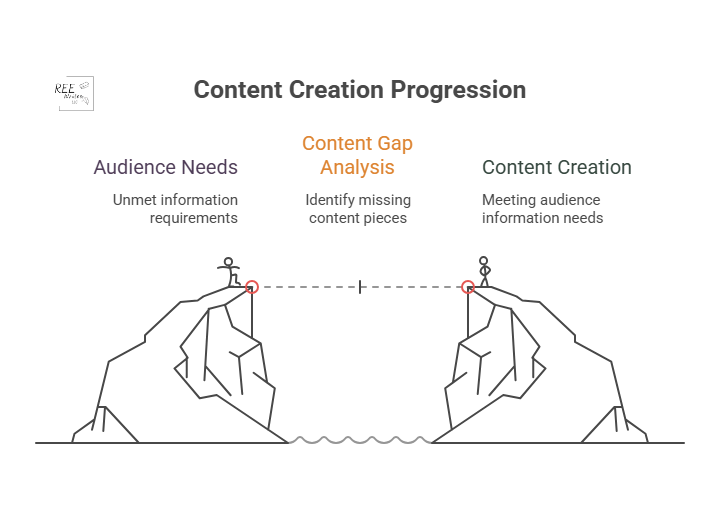
A content gap analysis finds topics and keywords important to your audience that your business doesn’t cover. It usually involves looking at the keywords your competitors rank for in search results that you don’t.
The goal is simple: identify holes in your content that your audience needs you to fill. Creating useful resources builds trust and authority with potential customers.
Think of it like a grocery store owner checking a rival’s aisles. If they see customers constantly buying a popular brand of organic granola that they don’t stock, they’re missing out on sales. That’s called a “product gap.”
You’re doing the same thing, but with information. You’re looking for information your audience wants, but they can’t find on your site.
Content strategies must be hyper-focused on customer needs to be effective. A content gap analysis is the most direct way to align your strategy with your audience’s needs.
Now that we’ve covered the basics, let’s look at how this can help your search engine optimization (SEO) and make your content work harder for you.
How Content Gap Analysis Affects Your SEO
Conducting a content gap analysis is a core part of a smart SEO and content strategy that delivers real results. It helps you stop creating content based on guesses and start making data-driven decisions that directly impact your growth. Here’s why it’s so important.
Find new keyword opportunities
Think you know all the important keywords for your industry? There’s always more to discover.
A content gap analysis uncovers valuable keywords your competitors are using to attract visitors—visitors that could be yours. These are often long-tail keywords or specific questions that show a user is further along in their buying journey.
Long-tail keywords (phrases of 3+ words) make up a significant portion of all Google searches. These less-competitive phrases often have higher conversion rates because the user’s search intent is much more specific. By finding gaps, you’ll also find these high-intent long-tail keywords.
Different types of content gaps
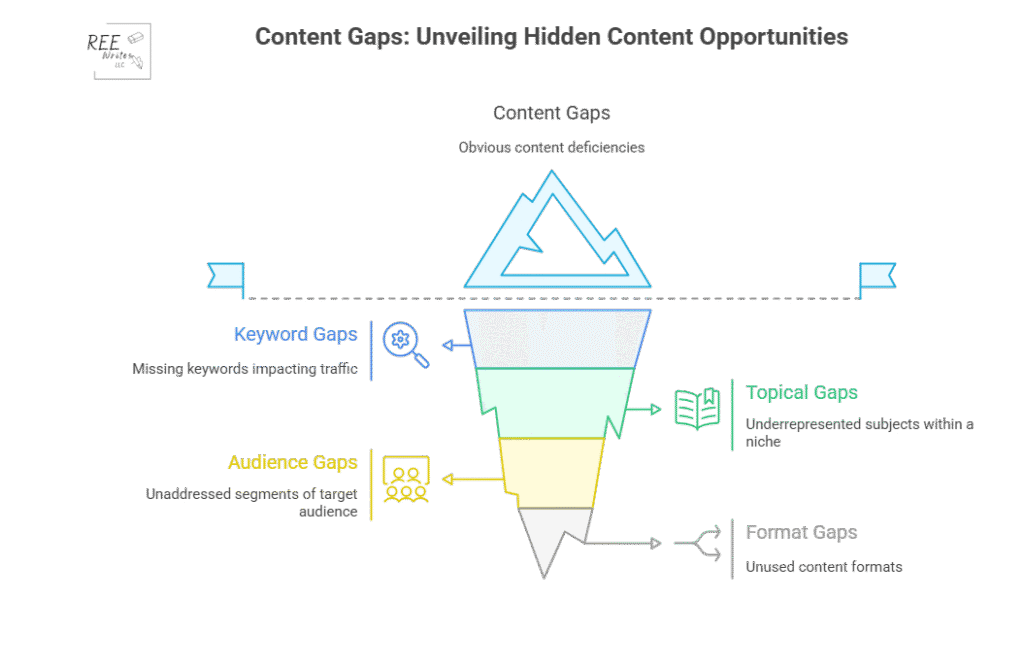
There are four types of content gaps you can address to be sure that your content strategy is thorough and promotes conversions:
Formats: Content types like videos, blogs, case studies and podcasts your audience likes, but you don’t have.
Understand your audience
What questions are your potential customers asking? What are their biggest problems? A content gap analysis helps you get a clearer picture of what your audience needs at every stage of their journey. By seeing what topics are popular on competitor sites, you get direct insight into the conversations happening in your industry. This allows you to create content that truly resonates and helps people.
Let’s say for example that you’re a B2B software company, and you see your main competitor has an entire section of their blog dedicated to “integrations with other software.” If you have no content on this topic, you could address this gap by creating a series of articles on how their product works with other popular tools, and get an increase in qualified leads from your blog within a few months.
Outperform competitors
To get ahead, you have to be better than your competitors and cover the topics they’ve missed.
You can systematically cover topics your competition already ranks for, but you can create more comprehensive, up-to-date, and helpful content to win the top spot on Google. You can also find the “gaps within the gaps”—topics that none of your competitors are adequately covering. This analysis gives you a strategic advantage.
Competitor analysis is an important piece of your marketing and content strategy. It’s the foundation for identifying opportunities to gain a competitive edge in search rankings.
Improve the customer journey
The customer journey isn’t a straight line. People move from being aware they have a problem, to considering different solutions, to making a final decision. You need content that supports them at every stage.
Source: Talkative
A content gap analysis helps you see if you’re missing content for a critical stage. For example, you might have great blog posts for the “awareness” stage, but no comparison guides for the “consideration” stage.
Ensuring a seamless customer journey with helpful information at each touchpoint can significantly increase customer satisfaction and conversion rates. Customers who receive helpful content throughout their journey are more likely to become loyal brand advocates. Filling your content gaps can help you do that.
4 Steps to Content Gap Analysis
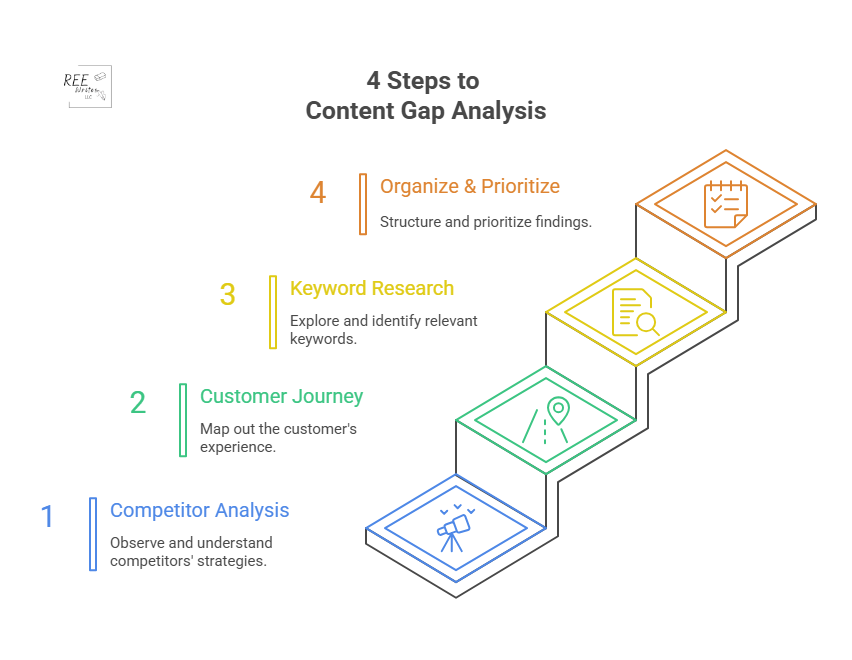
Now that you understand why it’s so important, let’s get into the how. Here’s a four-step process to find and fill the gaps in your own content strategy.
Step 1: Analyze Your Competitor’s Content
What’s already working for others in your space? Let’s find out, using SEO tools to get a data-backed look at your competitors’ content performance.
First, identify your SEO competitors. These are websites that consistently show up on the first page of Google for the keywords you want to rank for.
Next, use an SEO tool to do the heavy lifting. Tools like Ahrefs, Semrush, and Moz have specific “gap analysis” features built for this exact purpose. These competitive analysis tools are essential for your digital marketing strategy, saving you hundreds of hours of manual research.
Source: Semrush
Here’s a typical workflow using Semrush’s Keyword Gap tool:
Enter the domains: Input your own website’s domain and the domains of up to four of your top SEO competitors.
Run the analysis: The tool will compare the keyword profiles of all the websites.
Find the gaps: Filter the results to show keywords where your competitors rank (e.g., in the top 10 results), but your site does not. Semrush has a “Missing” filter perfect for this.
This process will give you a spreadsheet full of valuable keywords and topic ideas that are already proven to attract visitors in your industry. This data-driven approach removes guesswork and gives you a clear starting point.
Step 2: Map the Customer Journey
A content gap can also exist within your own site. You might be missing content for crucial stages of the customer journey, leaving potential customers stuck.
Think about the journey in three simple stages:
Awareness Stage: The person knows they have a problem but doesn’t know the solution yet. They are looking for educational, top-level information. Examples: “Why is my skin so dry in the winter?” “How to improve team productivity.”
Consideration Stage: The person now understands their problem and is researching different solutions or methods to solve it. Examples: “Hyaluronic acid vs. glycerin for dry skin.” “Asana vs. Trello for project management.”
Decision Stage: The person has decided on a type of solution and is now comparing specific products or services to make a purchase. Examples: “CeraVe Moisturizing Cream review.” “Best price on Asana business plan.”
Now audit your existing content. To do a content audit, create a simple spreadsheet and categorize your current articles, guides, and landing pages into these three stages. You’ll quickly see where the gaps are. Do you have dozens of “awareness” blog posts but no “consideration” comparison guides? That’s a huge content gap you need to fill to guide users toward a purchase.
Step 3: Use Keyword Research to Find Questions
Sometimes the biggest opportunities lie in the specific questions people are asking. These questions are a goldmine for content ideas because they tell you exactly what’s on your audience’s mind.
Source: Swarm Digital
There are several free and easy ways to find these questions:
Google’s “People Also Ask” (PAA) Box: When you search for a keyword, Google often shows a box with related questions. This is a direct look into what other users are searching for. Click on a question, and more will appear.
AnswerThePublic: This free tool takes your keyword and generates a visualization of hundreds of questions related to it, broken down by who, what, where, when, why, and how.
Forums: Search for your topic on these sites like Reddit and Quora and look at the discussions. What are people confused about? What problems are they trying to solve? The language is natural, giving you raw insight into your audience’s pain points.
For example, if your main topic is “email marketing,” you might discover from the PAA box that people are asking, “How often should a small business send emails?” or “What are the best free email marketing tools?” These are perfect topics for new articles that address a very specific need.
Step 4: Organize and Prioritize Your Ideas
By now, you should have a long list of potential content ideas from your competitor analysis, customer journey mapping, and question research. The final step is to organize these ideas and decide what to work on first.
Create a master spreadsheet for your content ideas. For each idea, include these columns:
Topic Idea
Target/Focus Keyword
Stage of Customer Journey
Monthly Search Volume
Keyword Difficulty
Business Relevance (1 to 5)
How to Choose Project Management Software
choose project management software
Consideration
800
Medium
5
Asana vs. Trello
asana vs trello
Consideration
2,500
High
4
Best Free Email Marketing Tools
free email marketing tools
Decision
5,000
High
3
Use this data to prioritize. A good approach is to look for topics with a sweet spot of:
High business relevance
Decent search volume (100 to 1,000 searches per month minimum)
Manageable keyword difficulty (KD)
Then group related topics into topic clusters to build authority on a subject and improve your internal linking structure. This ensures you’re creating content that will not only attract traffic but attract the right leads who are likely to be interested in your products or services.
A content gap analysis takes the guesswork out of your content strategy. Instead of wondering what to write next, you’ll have a clear roadmap based on real data about your audience and competitors. Do a content gap analysis regularly to fill the holes in your content, meet your audience’s needs, and steadily grow your organic traffic.
References
Ahrefs. (2023). Ahrefs Keyword Explorer Data. Ahrefs Pte. Ltd. Retrieved from [https://ahrefs.com/keywords-explorer.
AirOps (2024). Content Gap Analysis: Types, Examples & Step-by-Step Guide. Retrieved from https://www.airops.com/blog/content-gap-analysis-examples
du Plessis, C. (2022). A Scoping Review of the Effect of Content Marketing on Online Consumer Behavior. SAGE Open, 12(2). https://doi.org/10.1177/21582440221093042
Search Engine Journal. (2025). The State of SEO: A 2025 Report. Retrieved from https://www.searchenginejournal.com/state-of-seo/
Did you know that 88% of online customers won’t return to a website after a poor user experience?
As a solopreneur, your website is often your primary storefront, marketing engine, and customer service hub all rolled into one, working for you 24/7. But is it working effectively?
In the crowded online space, simply having a website isn’t enough. You need a site that visitors not can only find easily, but also enjoy using. A great user experience (UX) keeps visitors engaged and convert them into loyal customers.
This article will walk you through essential website user experience tips specifically tailored for solopreneurs. We’ll talk about psychological triggers that influence visitor behavior, and cover practical strategies to improve your site’s performance, navigation, design, calls-to-action, trust signals, and checkout process. By implementing these tips, you can create a better customer experience, boost customer engagement, and drive more website conversions.
What is user experience and how does it apply to a website?
Good UX and content design means making your website easy, intuitive, and pleasant for people to interact with. For a one-person business, optimizing UX isn’t just a nice-to-have; it’s a critical factor for success. It directly impacts how visitors perceive your brand, whether they stick around to learn more, and ultimately, whether they become customers.
Smooth, intuitive UX guides visitors naturally towards your desired actions, whether that’s signing up for a newsletter, filling out a contact form, or making a purchase. Conversely, a clunky, confusing, or slow website frustrates users and sends them clicking away – often straight to a competitor. Good UX and content design removes friction from the user journey, making it easier for visitors to convert (take action).
Why should you, as a busy solopreneur, dedicate precious time and potentially resources to improving your website’s user experience? The answer lies in the direct impact UX has on your bottom line.
Cost-benefit analysis of UX improvements vs. other marketing investments
As a solopreneur, every dollar counts. You might wonder if investing in UX will give you a better return on investment (ROI) than spending more on ads or other marketing channels.
Research consistently shows that the answer is a resounding Yes:
While specific numbers vary from study to study, a better user experience equals more conversions.
Often, UX improvements involve optimizing what you already have, potentially offering a higher ROI than constantly chasing new traffic through paid channels. Various studies from Forrester, Nielsen Norman Group and others suggest every $1 invested in UX can yield a return between $2 and $100.
Driving traffic to a poorly designed website is like pouring water into a leaky bucket. You might get initial visitors, but they won’t convert, and your marketing budget is wasted. Improving your website’s UX and content design is like fixing the leaks to ensure the traffic you get has a much higher chance of converting. This makes your existing marketing efforts more effective and provides a firm foundation for your business to grow. Unlike social media platforms, your website is an owned channel that no one can take away.
Improved UX reduces bounce rates and increases average session duration
Credit: Styled Stock Society
Have you ever visited a website, felt lost, and immediately left? That’s a bounce.
Your bounce rate measures the percentage of visitors who land on your site and leave without interacting further. A high bounce rate often signals UX problems – perhaps the site loaded too slowly, the navigation was confusing, or the content wasn’t what they were looking for.
Average session duration tells you how long visitors typically stay on your site.
Good UX and content design elements like clear navigation, fast loading times, and engaging content make visitors want to stick around longer and learn more about what you offer. Improving UX elements directly addresses the reasons people leave quickly.
Let’s go deeper into these elements, starting with the speed that your website loads.
Speed Up Your Website Loading Time
Your site’s loading speed directly affects user satisfaction, engagement, and conversions.
3 to 5 seconds determines whether visitors stay or leave
If your site takes too long to load, potential customers will simply leave before they even see what you offer. 40% of website visitors, and more than half of mobile users will abandon websites that take more than 3 seconds to load.
Google research indicates that as a webpage load time goes from 1 second to 3 seconds, the probability of a visitor bouncing increases by 32%. If it goes to 5 seconds, the probability increases by 90%.
Websites loading within 2 seconds typically have an average bounce rate of 9%, while those taking 5 seconds see bounce rates jump to 38% (Pingdom, 2021).
Aim for a loading time under 3 seconds to keep site visitors engaged.
Optimize images for faster load times
One of the biggest culprits of slow websites are large, unoptimized images. To improve your website speed, first consider the size of the images you use, and then:
Resize images: Don’t upload images straight from your camera or stock photo site. Resize them to the actual dimensions needed on your webpage before uploading. A banner image may only need to be 1920 pixels wide, not 5000.
Compress images: Tools like ImageOptim and TinyJPG reduce file size without sacrificing quality.
Pick the right file format: Use for JPEGs for photos, PNGs for graphics with transparency, and SVG for graphics and icons.
Also consider using newer image formats like WebP, which often provide better compression than JPEG or PNG. Many WordPress plugins can automatically convert your images to WebP for supported browsers.
WordPress plugins to improve speed
Credit: WPExplorer
If your website runs on WordPress, you have several plugins to choose from that can significantly improve website performance (not sponsored):
Caching plugins like WP Rocket, LiteSpeed Cache (which I use), and W3 Total Cache store static versions of your pages. This means they don’t have to be generated from scratch for every visitor, speeding up your site’s load time.
Image Optimization plugins like Smush, ShortPixel, and Imagify can automatically compress and resize images upon upload and even convert them to formats like WebP.
Asset Optimization plugins like Asset CleanUp and Perfmatters let you disable unnecessary scripts (CSS and JavaScript) from loading on specific pages where they aren’t needed, reducing bloat.
Installing plugins on WordPress is pretty straightforward, but if you need help, I recommend going to WPBeginner for easy tutorials (not sponsored).
Tools to test your website speed and benchmark improvements
You can’t improve what you don’t measure. Regularly test your page speed using online tools like these (not sponsored):
Google PageSpeed Insights: Provides scores for mobile and desktop, highlighting specific issues and opportunities for improvement. Focus on metrics like Largest Contentful Paint (LCP), Interaction to Next Paint, INP, and Cumulative Layout Shift (CLS), known as Core Web Vitals.
GTmetrix: Offers detailed performance reports, waterfall charts showing load order, and allows testing from different locations.
Use these tools before making changes to get a baseline. Then afterward, make the changes described in this section to see the impact of your optimizations.
Once you’ve got your site loading quickly, visitors need to be able to find their way around easily, which brings us to navigation.
Create Clear, Intuitive Navigation
Your website’s navigation is like a map. If the map is confusing, torn, or leads to dead ends, you’ll get lost and frustrated.
Clear, intuitive navigation design is like a map that guides visitors smoothly through your site to help them find the information they need. Users shouldn’t have to guess where to find something.
The psychology behind effective website navigation structures
Our brains naturally prefer order, hierarchy, and simplicity. If site visitors struggle to find key pages (Services, Contact etc.), they’ll bounce.
Good navigation respects user psychology by reducing the mental effort required to use your site (cognitive load). A principle in psychology of design called Hick’s Law states that the time it takes to make a decision increases with the number and complexity of choices. Keeping your main navigation menu concise with 5 to 7 main items makes it easier for users to process and choose.
Group related pages logically under clear, predictable headings (“Services,” “About,” “Blog,” “Contact”). Keep your main navigation the same across all pages for consistency.
List the main tasks: What are the main things you want users to do on your site (learn about services, find pricing, contact you, read blog posts)? These should be your menu labels.
Do a user test: Put yourself in your user’s shoes. Ask a friend who is unfamiliar with your site to complete these tasks using only the navigation. Was it easy? Were there confusing labels? Did you hit a dead end because something was missing or unclear?
Check analytics: Use website analytics (like Google Analytics 4 or Navigation Summary reports) to see how visitors actually move through your site. Are they dropping off at certain points? Are they using the search bar excessively because they can’t find things via the menu?
Run a simple card sort: Write down the main pages/topics of your site on cards (physical or virtual). Ask a few people (ideally from your target audience) to group these cards in a way that makes sense to them. This can reveal intuitive groupings you may not have considered.
A mobile responsive website means that its design and layout automatically adjusts to the screen of the device in use.
Common mobile navigation patterns include:
Hamburger menu: This three-line icon is widely used to tuck the menu away, saving space. Ensure the menu, once opened, is easy to scan and tap.
Bottom navigation bar: For apps or sites with a few core actions, a persistent nav bar at the bottom of the page can provide quick access to key areas.
Thumb-friendly design: Place key navigation elements within easy reach of a user’s thumb. Test your site on mobile devices of different sizes.
Clear labels: Keep menu item labels concise and clear on smaller screens to save space.
Take a mobile-first design approach, where you design for mobile constraints on a very small device first and then adapt for larger screens. Ensure menus, dropdowns, and buttons function smoothly on smaller screens, and are still easy to read. Using a single-column layout helps too.
A mobile-first design leads to an accessible, cleaner, and more focused navigation overall, and more satisfied users.
Set breadcrumbs and secondary navigation elements
Credit: WPBeginner
Breadcrumbs are navigational aids that show users their current location within the site structure. They typically appear horizontally near the top of a page (Home > Services > Web Design). Not only do they enhance usability, but they can improve SEO rankings, as search engines value clear site structure.
Secondary navigation might include links in the footer (for privacy policies and terms of service) or sidebar navigation for related content within a specific section (like blog categories). Use secondary navigation judiciously to avoid cluttering the main navigation.
A/B testing strategies for navigation improvements
Credit: Invesp
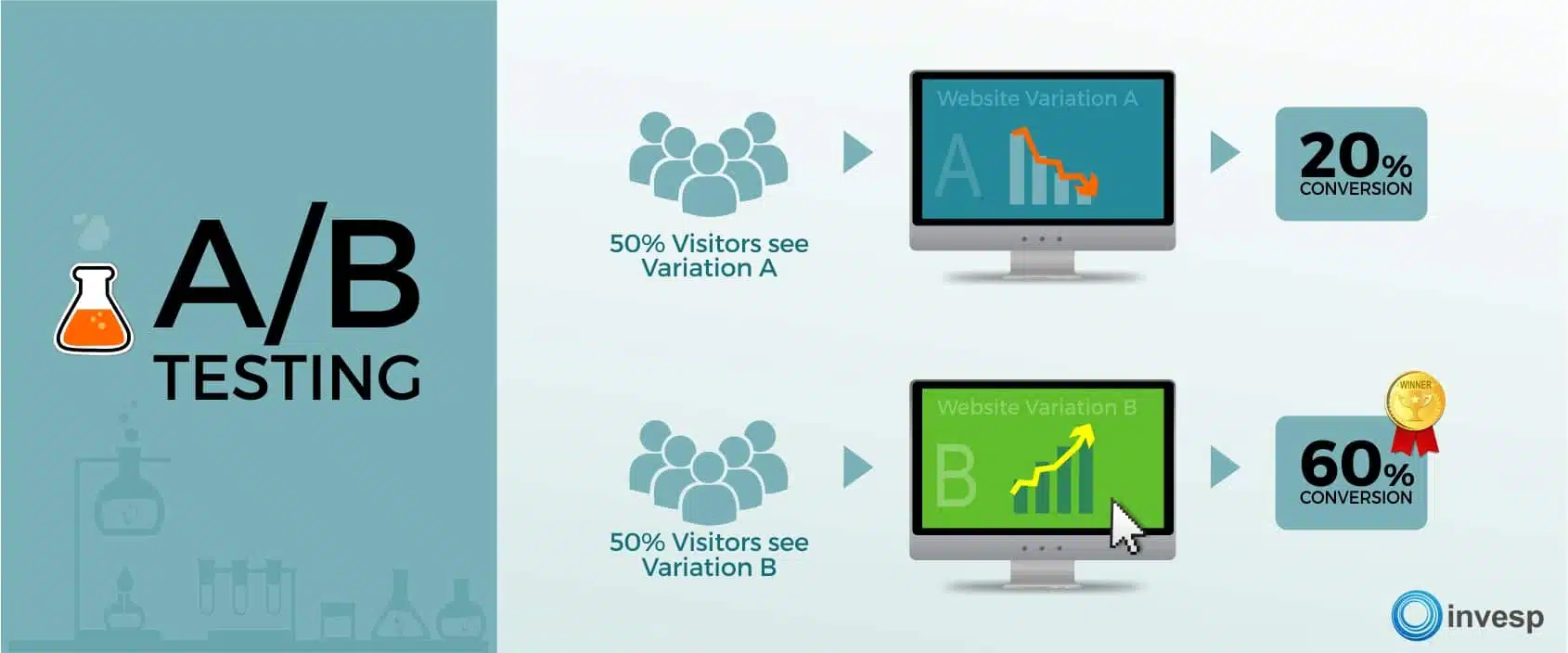
A/B testing (also known as split testing) is a way to evaluate two versions of the same thing.
Once you have some hunches about how to improve your site navigation, use A/B testing to validate them. You could test:
Menu labels: Does “Our Work” perform better than “Portfolio”?
Item order: Does placing “Contact” last in the menu improve conversions?
Number of items: Does a slightly shorter or longer menu affect user flow?
Mobile menu style: Does a bottom bar outperform a hamburger menu for your specific goals?
If you want to do an analysis of user habits, use a heatmap to see where users click most on a website.
Start with small, focused tests, and experiment with menu styles, positioning (top vs. sidebar), and category labels. Tools like Optimizely, VWO, and HubSpot allow you to show different navigation versions to different segments of your target audience and measure which performs better against your goals, such as a lower bounce rate or higher goal completions. (This content is not sponsored by these tools.)
Now let’s move on to web design and content.
Design for Visual Hierarchy and Scannable Content
People don’t read websites; they scan them. Your website design needs to establish a clear visual hierarchy to make content easy to scan and digest.
Structure content for F-pattern and Z-pattern reading patterns
Users typically scan in an F-pattern for text-heavy pages and a Z-pattern for layouts with visuals. Research by Nielsen Norman Group identified two common web reading patterns:
F-Pattern: Users often scan in a pattern that resembles the letter “F.” They read horizontally across the top, then scan down the left side, occasionally reading horizontally again on interesting headings or lines. This means placing key information (headings, subheadings, initial sentences) at the top and left is crucial.
Z-Pattern: For less text-heavy pages or simpler layouts, users might scan in a “Z” shape, where they look across the top, diagonally down and left, then across the bottom. Use this pattern for landing pages by placing key elements like your logo (top-left), main heading, key visuals/points (along the diagonal), and a call-to-action (bottom-right).
Structure your page layout knowing users will likely scan. Place key elements like headings, subheadings, and bullet points and CTAs to catch their eye along these paths.
Direct their attention with proper contrast, size and color
Visual hierarchy uses design principles to signal importance without explicitly stating it. Key techniques include:
Size: Make headings significantly larger than body text. Make important buttons larger than secondary links.
Color: Color psychology suggests certain colors evoke specific emotions or actions (in the U.S., blue conveys trust, while red can evoke urgency), but context and contrast are often more important than the specific hue. Use contrasting colors to make key elements (like CTAs) stand out. Ensure sufficient color contrast between text and background for accessibility.
Contrast: Contrast draws attention. For example, bold headings and bright CTA buttons stand out against neutral backgrounds. High contrast (dark text on a light background) improves readability and accessibility. Use contrast strategically to draw attention to focal points.
Placement: Users perceive elements placed higher on the page or in prominent positions (like the top or center) as more important than others.
Make scannable content with subheadings, bullet points, and short paragraphs
Credit: Microsoft Style Guide
No one wants to read a wall of text. Here’s some ways to create scannable content:
Font size: Use a text font size where users don’t have to squint to read. Any font size under 14 points will compromise readability.
Short paragraphs: Aim for paragraphs of 1 to 4 sentences, left-aligned. This creates more white space and makes the text less daunting to read. I love using Hemingway Editor to simplify complex sentences and check the reading level of my writing (not sponsored).
Meaningful subheadings: Use clear, descriptive headings with the proper heading tag (H2, H3, etc.) to outline the content structure and allow users to jump to sections of interest.
Bulleted and numbered lists: Ideal for listing features, benefits, steps, or key takeaways.
Bold or italic text: Use formatting to highlight key terms or phrases within paragraphs, but don’t overdo it.
Eye-tracking studies show that concise, scannable text formats can improve usability by 47% (Nielsen Norman Group). These techniques improve readability and help users quickly grasp the main points, respecting their time and scanning habits for all forms of online reading, not just websites.
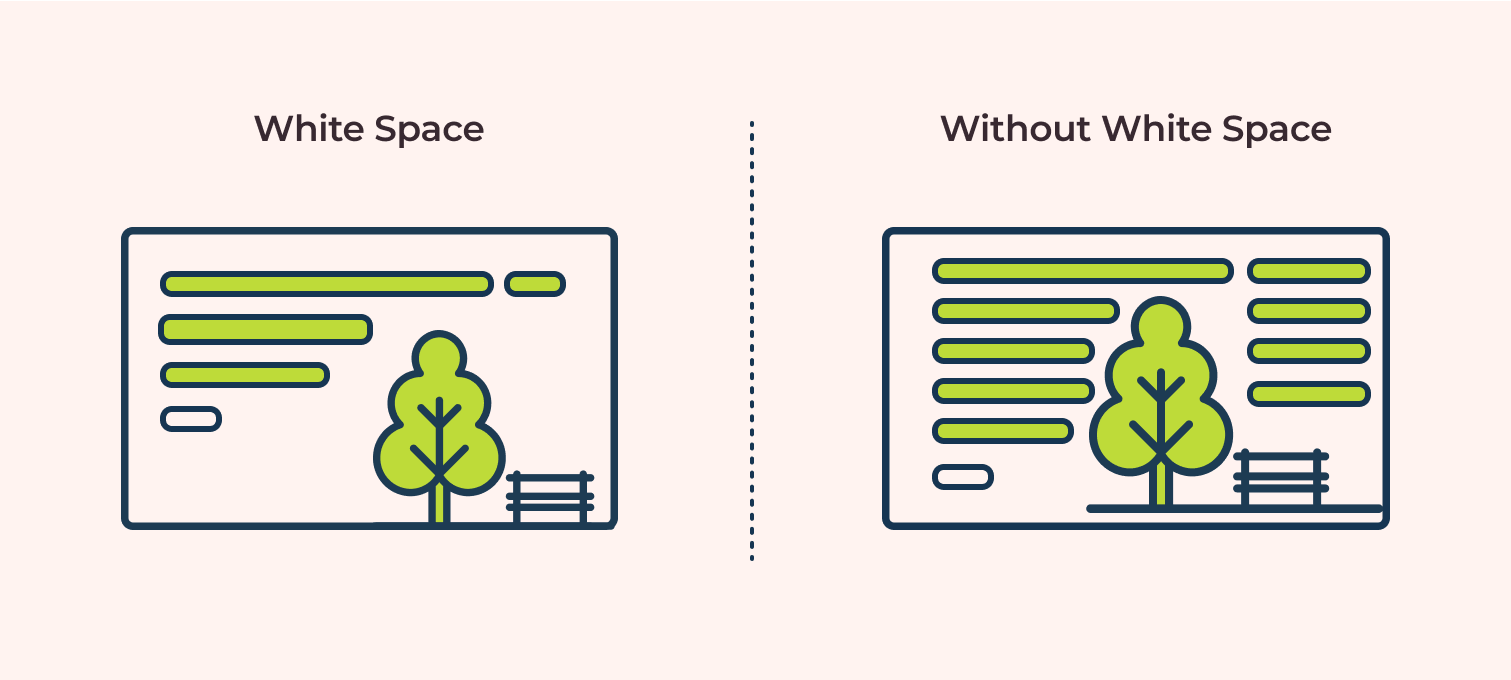
Effective use of white space to improve readability
Source: ux360.design
White space enhances focus and reduces cognitive load, making your site easier to read. Avoid cramming too much copy into any section of the page by adding white space around elements on your page.
White space helps to:
Reduce onscreen clutter: Makes the page feel calmer and less overwhelming to read through.
Improve focus: Helps draw the user’s eye to important elements by separating them from surrounding content.
Helps understanding: Studies show that good use of white space between paragraphs and in margins increases reading comprehension.
Don’t be afraid to let your content breathe.
Balance text and visuals for maximum engagement
While text conveys detailed information, visuals (images, icons, videos) capture attention, illustrate points, break up text, and evoke emotion.
Images and infographics can complement written content, but too many visuals can overwhelm visitors. To keep things balanced:
Include relevant images: Ensure images support the content and aren’t just decorative filler. High-quality, authentic photos work better than generic stock photos to establish trust with your brand.
Use icons: Icons can quickly convey concepts and add visual interest to lists or features.
Consider using video: Short explainer videos or testimonials can be highly engaging.
Maintain consistency: Visual elements should align with your brand identity and the overall design consistency of the site.
Well-structured, scannable content naturally leads the user toward the next step: taking action.
Craft Compelling Calls-to-Action
Credit: Shopify
A call-to-action (CTA) is an instruction designed to get your site visitor to do something, like signing up for your emails, buying your product, or booking a consultation.
Effective CTAs are crucial for lead generation, driving sales, and moving potential customers through your sales funnel (also called a conversion funnel). A weak or unclear CTA means missed opportunities.
CTAs: What makes a person click?
The most effective CTAs tap into basic user psychology to encourage your target audience to act on something. Wording like “Get Started” or “Claim Your Free Trial” emphasizes simplicity and value.
Create CTAs that convert with these characteristics:
Clarity: Users need to know exactly what will happen when they engage with a click or tap. Be specific and use action-oriented language. Use strong action verbs (“Get,” “Download,” “Subscribe,” “Book,” “Shop”). Instead of “Submit,” try “Send My Message” or “Get Started.”
Concise: Keep CTAs short, with no more than 3 words per button.
Benefit-Oriented: Clearly state the benefit or outcome (“Get Your Free Quote,” “Download the Ebook,” “Book a Consultation,” or “Start Saving Today” vs. “Submit”). The text should clearly communicate what the user will get when they engage.
Sense of urgency: Mention limited availability or time-sensitive discounts. Phrases like “Limited Time Offer” or “Shop Now Before It’s Gone” can encourage immediate action, but can backfire if they’re overused or seem inauthentic. Use these phrases sparingly.
Address objections: Add small text near the CTA to preempt concerns and remove hesitation, like “No credit card required,” “Cancel anytime,” “Free 15-minute call,” or “Secure checkout.” , You can also use social proof (“Join 1,000+ happy customers”). This builds trust right at the decision point.
Best practices for CTA position and color
Where and how your CTA appears matters:
Position: Place CTAs in context, where user motivation is likely high, and visible without excessive scrolling:
Above the fold on landing pages
After compelling benefit descriptions
At the end of blog posts.
Color: Use a brand color that contrasts strongly with the background and surrounding elements, make the button pop.
When to use primary vs. secondary CTAs on a single page
Not every visitor is ready to buy during their first visit to your site. Offering options caters to different stages of the customer journey:
Primary CTA: Your main desired action (“Buy Now,” “Request a Demo”). This should be the most visually prominent CTA on the page.
Secondary CTA: Sometimes, asking for a small, low-risk action first (a micro-commitment) is the right choice (“Learn More,” “Download Free Guide,” “Add to Wishlist”). These secondary CTAs hould be less prominent (an outline style button or text link) so they don’t compete visually with the primary CTA. Examples include:
Signing up for a free newsletter.
Downloading a valuable free resource (checklist, template).
Following you on social media.
Successfully completing these small interactions builds familiarity and a degree of trust, making visitors more receptive to your primary CTAs later in their user journey.
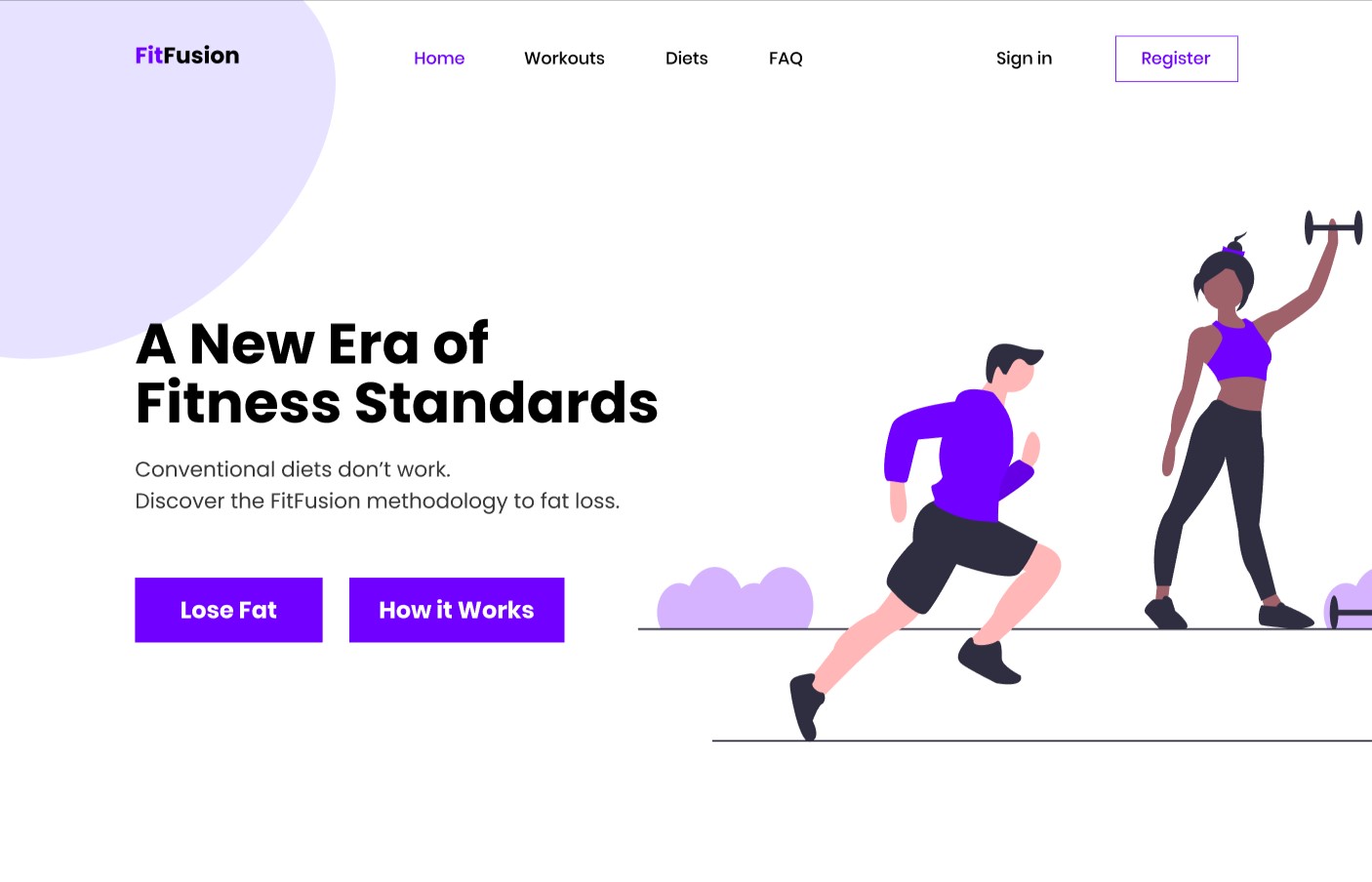
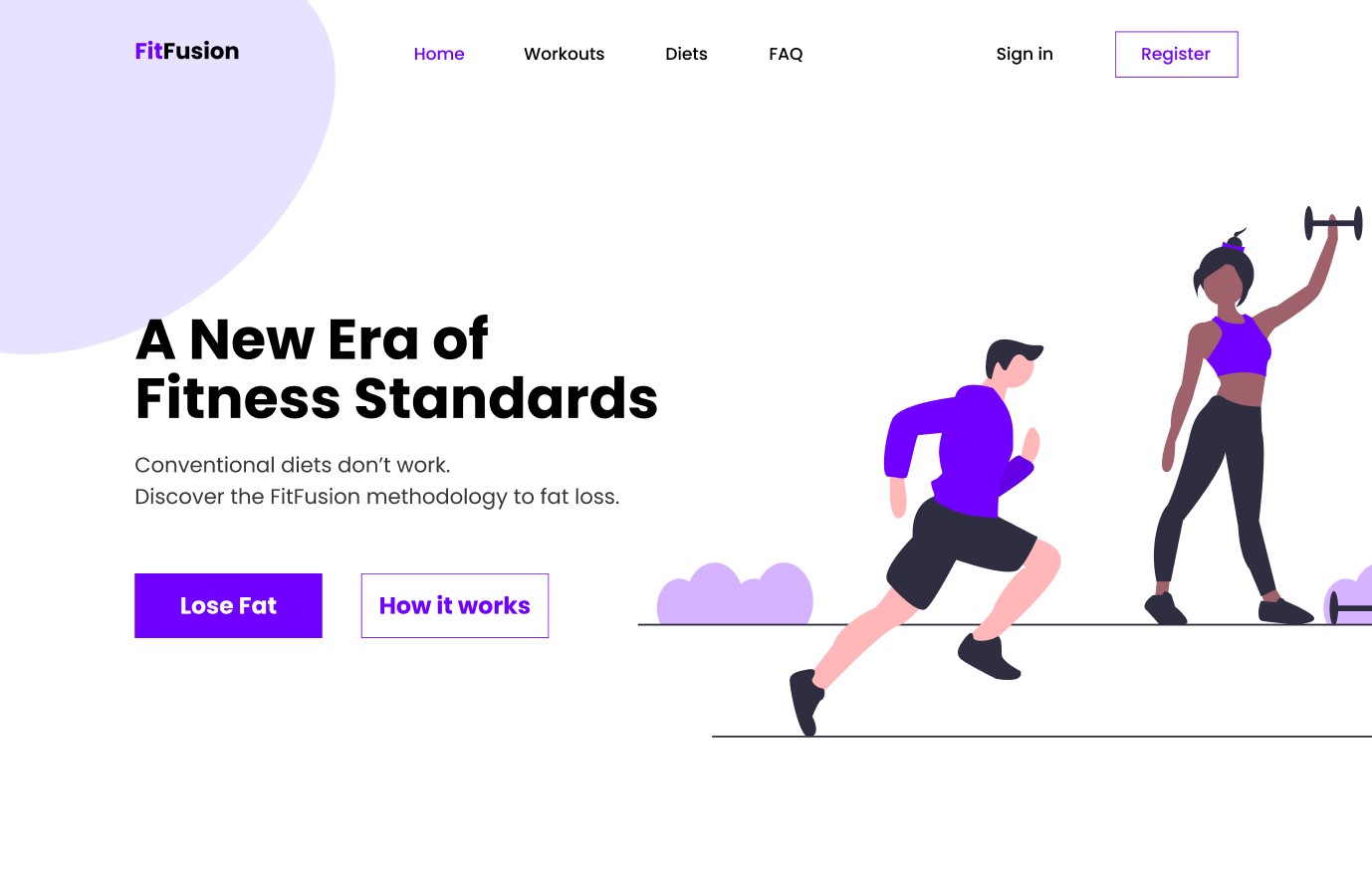
Take a look at these examples from DesignCourse (before and after):
Note that both buttons are styled the same.These buttons are styled differently, with inverse colors indicating that “Lose Fat” is the primary CTA.
Including both primary and secondary CTAs provides a path forward for more users, potentially capturing leads you might otherwise lose. However, don’t put too many CTAs on any webpage except a landing page. Emails with a single CTA increase clicks by 371% and sales by 1,617%!
Examples of high-converting CTAs for solopreneur websites
Tailor your CTAs to your specific online business model:
Service providers:
Book Your Free Consultation
Get a Custom Quote
Download My Portfolio
Request Project Details
Coaches and consultants:
Schedule Your Discovery Call
Enroll in the Course
Join the Waitlist
Access the Free Masterclass
E-commerce sellers:
Shop Now
Add to Cart
Buy It Now
Explore the Collection
Get 10% Off Your First Order
Content Creators and bloggers:
Subscribe to My Newsletter
Download the Checklist
Read More
Join the Community
HubSpot has even more CTA examples. Remember to test what resonates best with your audience.
Compelling CTAs work best when users trust you, which is where social proof comes in.
Include Social Proof Elements
Credit: CreatorDB
Trust is a key factor when a visitor decides whether to become your customer. Social proof is incredibly powerful for building website credibility and encouraging conversions.
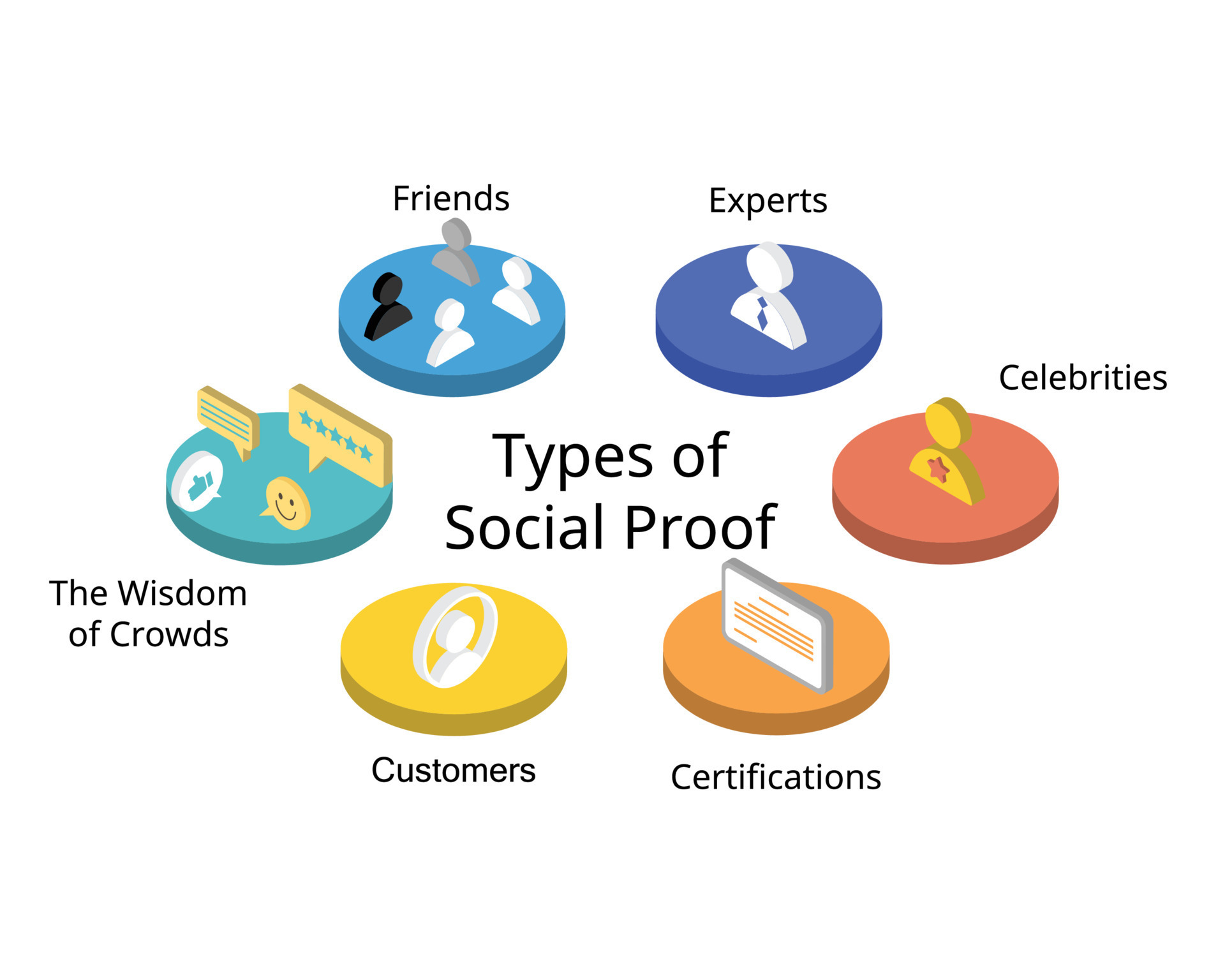
Social proof shows visitors that others already trust and value your products or services. Social proof builds confidence in your brand, because when they see that others had a good experience with your business, they feel safer becoming customers themselves.
Types of social proof most effective for solopreneur businesses
Credit: Vecteezy
You don’t need massive follower counts to leverage social proof. Effective types include:
Testimonials: Direct quotes from happy clients, ideally with their name and photo for authenticity. Video testimonials are even more powerful.
Reviews: Ratings and reviews on your site or third-party platforms (Google Reviews, Yelp, industry-specific sites).
Case studies: Detailed stories of how you helped a client achieve specific results.
Client logos: If you’ve worked with recognizable businesses (even small local ones), displaying their logos can lend authority.
Metricsand statistics: Mentioning the number of clients served, projects completed, or positive survey results (“95% client satisfaction rate”).
Media and PR mentions: Logos of publications or websites where you’ve been featured or made appearances (“As seen in…”).
Place your testimonials, reviews, and case studies strategically
Context matters. Don’t hide your social proof on a single “Testimonials” page. Place social proof where it directly supports the claim or action you want the user to take:
Homepage: Feature a few strong testimonials or client logos above the fold or near your main value proposition.
Service/Product pages: Place relevant testimonials or case study snippets near the description or CTA for that specific offering.
Landing/Checkout/Contact pages: A short quote or trust seal near a form can reassure users at the point of conversion.
Case study section: A dedicated area for detailed success stories.
Studies show that placing testimonials near CTAs can significantly increase conversion rates. BrightLocal’s 2023 Consumer Review Survey found that 98% of consumers read online reviews for businesses.
How to gather compelling testimonials when you’re just starting out
Getting those first few testimonials can feel challenging. Focus on quality over quantity. A few detailed, authentic testimonials are better than many generic ones. Here’s how to get testimonials:
Start with beta testers or early adopters: If you’re launching something new, offer a discount to early users in exchange for feedback and testimonials.
Ask directly: Reach out personally to clients you know are happy with your work. Make it easy for them by suggesting specific questions or offering to draft something they can approve. You can also offer to help someone for free in exchange for a testimonial.
Use feedback surveys: Include an optional field asking for permission to use positive feedback as a testimonial. Use tools like Typeform, SurveyMonkey, or Google Forms to gather feedback and request testimonial permission.
Services like Testimonial.to, Endorsal, or Senja make it easy to request text or video testimonials and display them attractively (not sponsored).
You can also include popups on your landing page. Tools like ProveSource show real-time notifications (“Someone just purchased X,” “Jane Doe signed up for the newsletter”) to create urgency and demonstrate activity (not sponsored).
Social proof builds trust, which is especially critical when asking users for information or payment. Let’s look at how to optimize those interactions.
Optimize Your Forms and Checkout Process
Forms (contact forms, signup forms, checkout optimization) are critical points of interaction on your website. If they are confusing, long, or seem untrustworthy, users will abandon them, costing you leads and sales. Streamlining these processes will help you maximize website conversions.
Form field best practices: less is more
The golden rule of form design is to only ask for information that is absolutely necessary. Every additional form field increases friction and the likelihood your ideal customers will bounce.
Studies have repeatedly shown that reducing the number of form fields can increase the form completion rate. For example, replacing “First Name” and “Last Name” with “Full Name” can reduce cognitive load and reduce the friction of a person hesitant to share their full name. Imagescape found that reducing fields from 11 to 4 increased conversions by 120%, and that principle still holds.
Analyze each field: do you really need it right now? Can you gather some information later? Eliminate optional fields unless you will need them later for email segmentation.
Use progress indicators for long forms
Credit: Dribbble
Progress indicators (“Step 1 of 3,” a visual progress bar) show users where they are in the process, which can reduce uncertainty, keep them motivated as they fill out each section, and reduce overwhelm. Ensure the indicator accurately reflects the remaining effort.
Single-Step forms: All fields are visible on one page. Best for short forms (contact, newsletter signup) where the required information is minimal. They feel quick and straightforward.
Multi-Step forms: The form is broken down into several smaller sections or steps, often with progress indicators. This is the best choice for longer forms (checkout, detailed applications) as they feel less overwhelming initially. Showing users where they are in the process and how much is left can significantly improve completion rates.
Reduce friction in the checkout process
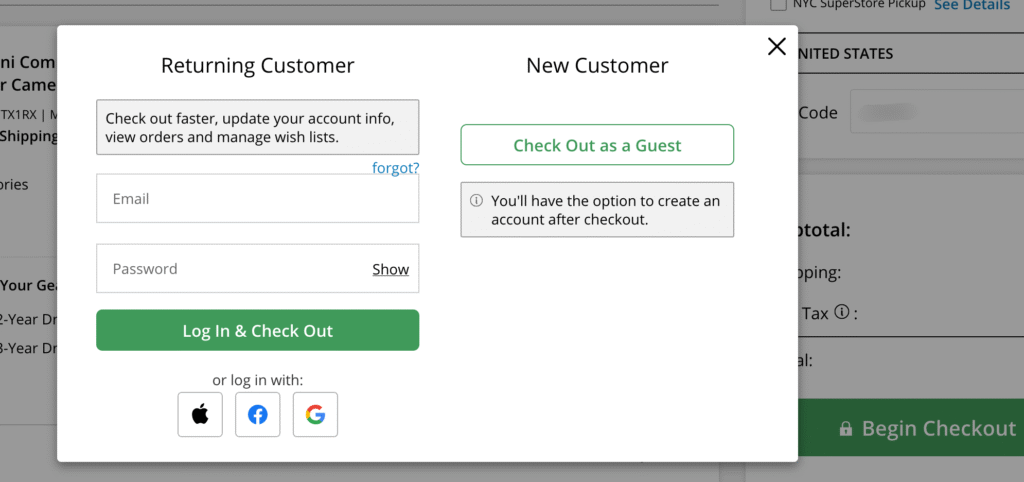
Allow users to check out as a guest, like B&H Photo and Audio
Cart abandonment is a major issue for e-commerce optimization. The Baymard Institute consistently finds high abandonment rates (70% on average across industries), often due to checkout friction. Some ways to counteract that and turn a casual visitor into a paying customer:
Offer guest checkout: Don’t force users to create an account or register before buying. This is a major conversion killer and often causes potential customers to bounce.
Be transparent about costs: Show all costs (shipping, taxes) upfront. Unexpected costs are the #1 reason for cart abandonment.
Provide multiple payment options: Accept major credit cards, Stripe or other fintech payment processor, and potentially digital wallets like Apple Pay and Google Pay.
Keep it simple: Only ask for essential shipping and billing info. Use features like address auto-complete. If the item is a digital download, a street address should not be required.
Even with optimization, some users will abandon forms or carts. To offset this, set up recovery strategies like these:
Exit-intent pop-ups: The action of a user who is about to leave the page (mouse moves towards the close button), triggers a popup offering help, a discount, or a reminder to save their progress. Use these carefully to avoid annoying users. Studies suggest exit intent popups can recover some visitors who are about to bounce. OptiMonk’s cart abandonment popups (exit-intent popups) had the highest average conversion rate at 17.12%.
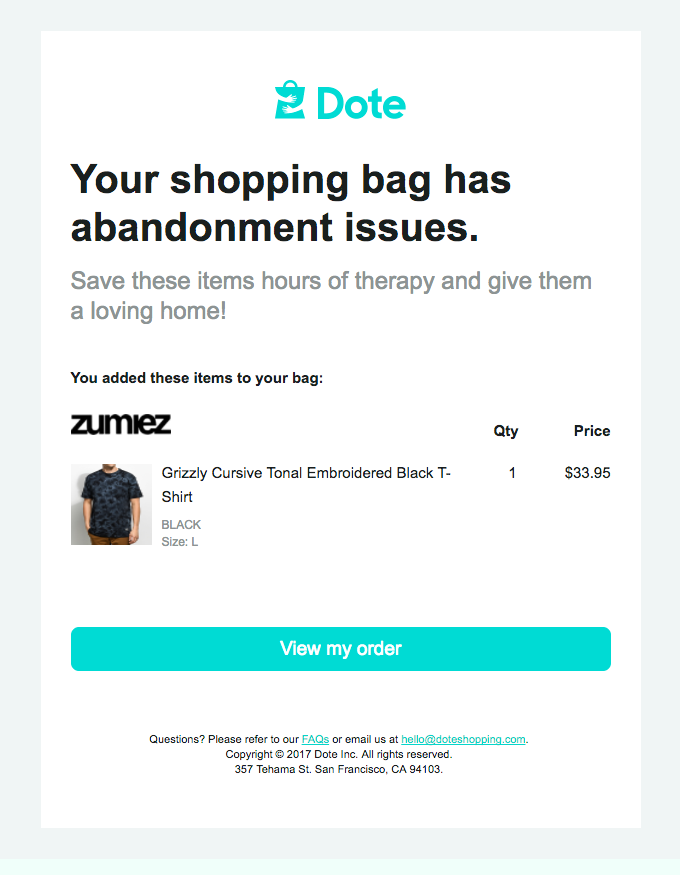
Abandoned cart emails: For e-commerce, if you capture an email address early in the checkout, send automated emails reminding users about their cart and encouraging them to complete the purchase, maybe with a small incentive. These emails have high open and conversion rates compared to standard marketing emails.
Form analytics: Hotjar and Microsoft Clarity offer form analysis features showing where users drop off within a form, helping you identify problematic fields (not sponsored).
Optimizing forms is crucial, but overall trust depends on more than just smooth interactions. It’s woven into your site’s entire presentation.
Build Trust with UX and Content Design
Trust is the foundation of any successful business relationship, especially when you don’t have face-to-face interaction. As a solopreneur, building website credibility is paramount. Visitors need to feel confident that you are legitimate, professional, and reliable. This trust is built through a combination of thoughtful design and transparent, authoritative messaging content.
Design elements that convey professionalism and credibility
Your website’s visual design, also known as the user interface (UI), creates an immediate first impression. But a professional look doesn’t necessarily mean expensive or flashy, but it does mean attention to detail:
High-quality logo & branding: A well-designed logo and consistent brand colors/fonts across your site signal professionalism.
Clean layout & white space: An uncluttered design makes your site look organized and easier to navigate. Avoid overwhelming users with too much information at once.
Readability: Choose clean, legible typography. Sans-serif fonts (like Arial, Open Sans, Lato) are generally preferred for web body text due to better screen readability and accessibility. Ensure good font size and line spacing.
People connect with people. As a solopreneur, your personality is your brand advantage (aka your “personal brand”). To show the real person behind your business:
Use your real name and a recent photo: Include a friendly photo and personal story on your About page to connect emotionally with visitors. This makes you more relatable and approachable.
Share your story: Briefly explain why you started your business and what drives you. People connect with purpose.
Use “I” and “You”: Write content in a conversational tone, addressing the reader directly.
Show your personality: Inject your voice and style into your writing and design. Let visitors get a sense of who you are.
Be responsive: Respond promptly and personally to inquiries. Good customer service is a differentiator among similar businesses.
Building trust isn’t about tricks; it’s about genuinely presenting yourself and your business professionally, transparently, and authentically.
Content that establishes authority in your field
Demonstrate your expertise and build credibility through high-quality content:
About page: Share your story, experience, and qualifications.
Detailed Service/Product Descriptions: Clearly explain the features and benefits of what you offer.
Blog Posts/Ebooks: Share valuable insights, tips, and knowledge related to your industry in blogs, ebooks, and newsletters. This positions you as an expert. You can repurpose excerpts as short-form content for sharing on social media.
Case Studies/Portfolio/Demo: Show concrete examples of your work and the results you’ve achieved for others.
Clear communication about security, privacy, and policies
Users are increasingly concerned about data privacy and security. Be transparent and make this information easy to find:
SSL Certificate: Ensure your site uses HTTPS (the padlock icon in the browser bar). This encrypts data exchanged between the user and your site and is a basic requirement for trust.
Google Chrome explicitly marks non-HTTPS sites as “Not Secure.”
Privacy Policy: Display a clear, accessible privacy policy explaining how you collect and use user data. This is often legally required (GDPR, CCPA).
Terms of Service (ToS): Outline the rules and guidelines for using your site or services.
Credit: Nielsen Norman Group
Adding trust badges or seals related to security (SSL logos, payment processor logos like Visa/Mastercard) near forms or checkout areas can also reassure users. Studies have shown that recognized trust seals can positively impact conversion rates, though the effect varies.
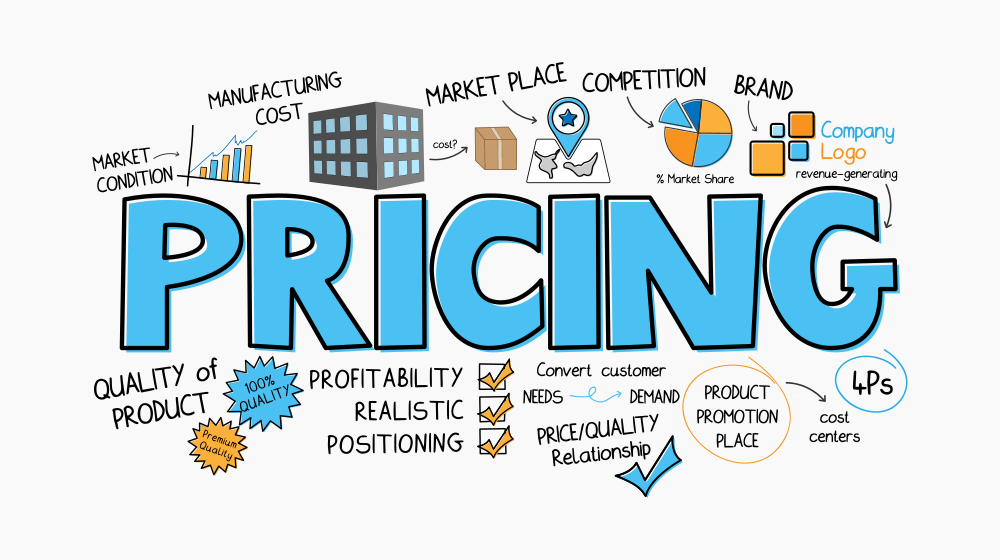
Transparency in pricing and business operations
Credit: Entrepreneur Handbook
Ensure that all your business information is easy to find. Hidden costs or unclear pricing structures can erode trust. Some tactics include:
Explain your process: Briefly outline how you work, what clients can expect, and typical timelines. This manages expectations and builds confidence. (You can address this in FAQs as well.)
Clear pricing: Display your pricing clearly and upfront. If you offer custom quotes, explain your process and what factors influence the price. Avoid making users jump through hoops just to understand the costs of your products and services. A Hotjar survey found that site visitors expect to find your pricing within 3 clicks.
Be Honest about limitations: As a solopreneur, you may not offer 24/7 support. Be clear about your working hours and response times so customers know what to expect. Honesty builds more trust than overpromising.
Contact information: Make it easy for users to contact you (phone number, email address, and physical address if applicable). A lack of clear contact info is a red flag. Displaying this prominently can increase trust.
Put UX at the Heart of Your Solopreneur Website
Optimizing your website’s user experience isn’t just about aesthetics; it’s a fundamental strategy for achieving your business goals as a solopreneur. Ensuring lightning-fast page speed and intuitive navigation design, crafting compelling CTAs and building rock-solid website credibility all play a part in guiding your visitors to becoming loyal customers.
Good UX and content design:
Directly impacts conversion rates.
Reduces bounce rates and increases session duration.
Builds trust and customer engagement.
Makes your marketing efforts more effective.
Improving your website’s UX and content is an ongoing process, not a one-time task.
Start by conducting a basic website user experience audit. Pick one or two areas discussed in this article and make changes. Use website analytics and user testing (even informal testing with friends or peers) to measure the impact. Then tweak your design elements and content accordingly.
Wrap-Up
Effective web copy isn’t about clever wordplay or fancy jargon—it’s about clarity, relevance, and customer-centricity. Your visitors arrive with problems to solve and questions to answer. When your web copy addresses these needs directly while guiding users toward a clear next step, you create a frictionless experience that builds trust and drives conversions.
Your website is an “owned channel,” while social media platforms are not. So keep your website up to date. As your business evolves and your understanding of your customers deepens, your website should evolve too. So set up a recurring task to review your web copy every six months or so using this guide.
When you prioritize your users’ needs and create a seamless, enjoyable online experience, you’ll improve your conversion rates, and strengthen your brand reputation and customer relationships. Whether you’re launching a new site or revamping the one you have, these principles will help ensure your web copy works as hard as you do, even while you sleep.